You’re not alone if your phone keeps warning that storage is full, or if you’re still worried you’ll lose photos when a computer crashes. Cloud storage fixes both problems, because you can keep your files off your device and still access them from anywhere. It also makes backups automatic, so you don’t have to remember everything.
For beginners, the hardest part is picking the right place to store files, then setting it up without getting lost. That’s exactly what you’ll get here, in plain language, with the practical steps for how to store files in the cloud step by step.
You’ll compare top 2026 options like Google Drive, Dropbox, OneDrive, Sync.com, and pCloud, so you can choose based on how you use your phone and computer. Then you’ll follow a simple walkthrough, including setup, uploading, sharing with family, and basic security settings (like encryption and safe links). Along the way, you’ll also see quick tips for avoiding common beginner mistakes.
By the end, you’ll have your files stored securely, with a system that’s easy to keep up with. Next, start by choosing the cloud service that fits your needs.
What Makes Cloud Storage a Game-Changer for Everyday Use
Cloud storage changes how you handle files day to day. Instead of juggling emails, thumb drives, or “Which device has the photo?” moments, you keep one copy in the cloud. Then your phone, laptop, and tablet pull the same files whenever you need them.
That simple shift brings real benefits of storing files in the cloud: more free device space, easier access on every screen, and less stress when something breaks. It also supports modern security and reliability habits, because today’s services try to spot threats early and keep data available even when systems fail.
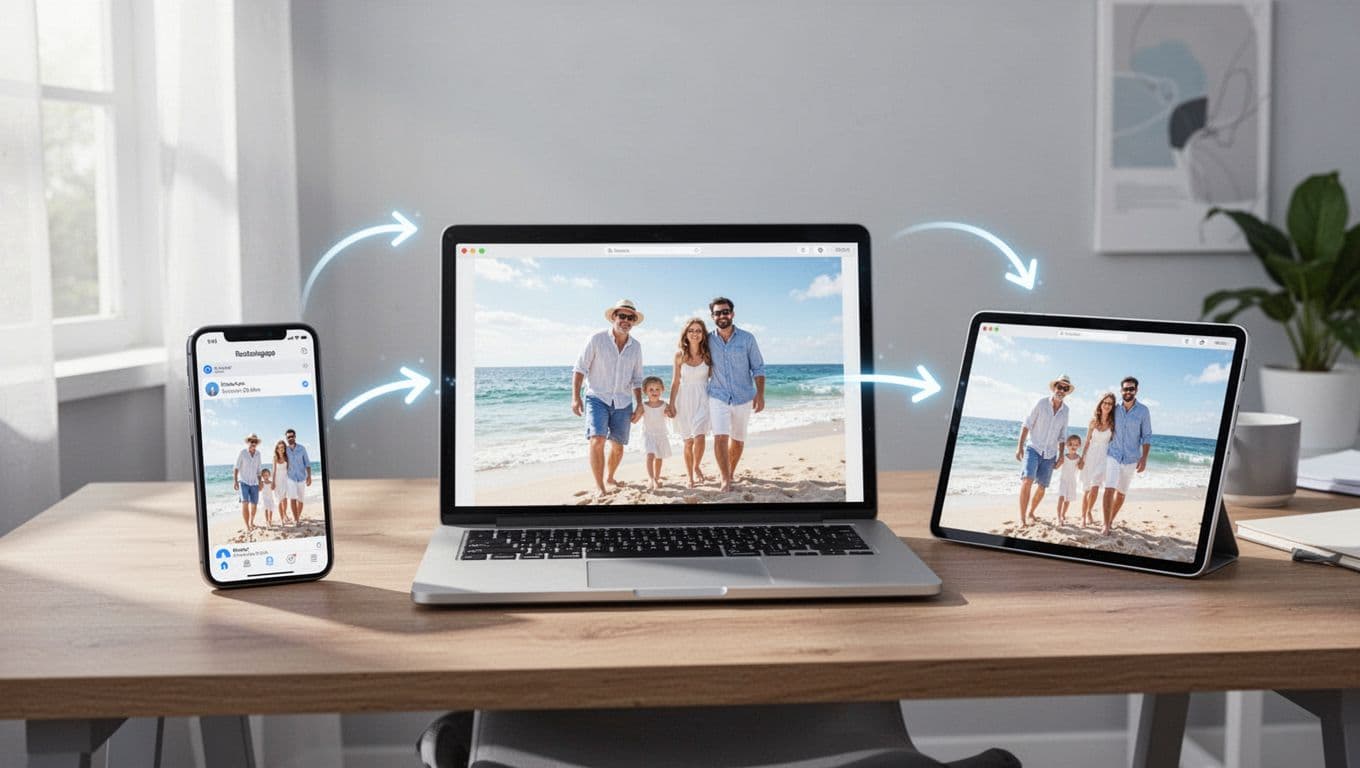
Free up space without losing what matters
Most people don’t hit “storage full” because they love saving files. They hit it because they take tons of photos, record videos, and download work docs. Cloud storage helps because you can move large files off your device while still viewing them later.
Think of it like using a spare closet instead of stuffing everything under your bed. Your items still exist, but your space stays usable.
Here’s what that looks like in everyday life:
- Photos and videos stay safe even if your phone storage runs low.
- New edits sync automatically, so your changes show up everywhere.
- Old downloads don’t crowd your storage anymore.
As a result, you spend less time deleting and more time finding. Also, many cloud tools now push smarter organization, which reduces the “Where did I save that?” problem.
Access anywhere, on any device
Cloud storage turns file access into a habit, not a chore. You open a shared folder on your laptop, then check the same folder on your phone. You keep moving, even when you switch devices mid-task.
For many families, this is most obvious with shared photo collections. Imagine uploading family vacation pictures once, then:
- your partner sees them instantly,
- grandparents can view them from their phones,
- you can download a favorite image for printing.
In short, cloud access makes files feel local, even when they’re not.
Auto-sync keeps your latest version in sync
Manual transfers get messy fast. You email a file, then forget which attachment is newest. You save two copies, then wonder which one you edited. Auto-sync solves that by keeping a clean “source of truth” in the cloud.
When auto-sync works well, you get:
- fewer duplicate files,
- fewer version mix-ups,
- faster collaboration through shared links.
Modern cloud services also use AI to improve how data moves and how systems react. According to industry reporting, AI use keeps rising across cloud operations, which is why sync and organization features keep improving each year.
If you want a broader view of cloud resilience and cost trends, see the 2026 Wasabi Global Cloud Storage Index.
Sharing becomes simpler than USB drives
USB drives still work, but they come with a hidden tax. You can lose them, leave them at home, or plug them into a different computer version. Sometimes they even fail when you need them most.
Cloud sharing usually feels lighter because you can share a folder or a link. Then you control access without passing hardware around.
Here’s why that matters for everyday use:
- Links work across phones and laptops, so everyone can view.
- You can revoke access without chasing down devices.
- Collaboration stays in one place, instead of in inbox threads.
It’s like switching from carrying keys on a lanyard to using a door code you can change anytime.
Resiliency and AI threat detection add peace of mind
Cloud storage isn’t just convenience. It also focuses on staying available. That matters when your home computer crashes, a drive dies, or you accidentally delete something.
Resiliency means your data survives problems like hardware failures, outages, or partial system disruptions. Many providers also run multiple copies across different storage systems. Some designs use hybrid setups and smarter storage choices to keep access reliable.
Meanwhile, modern threat detection matters because ransomware and other attacks target personal and business data. In 2026, more organizations plan to use cloud-based disaster recovery for ransomware response, so detection and recovery play a larger role than before. For a security-focused look at what’s changing, check The State of Cloud and AI Security in 2026 (CSA).
The best everyday setup is one where your files stay available and your service watches for risk. That’s what modern cloud storage aims to deliver.
Pick the Best Cloud Service That Fits Your Life in 2026
Picking the best cloud storage services 2026 comes down to one thing: what you already use day to day. If your life runs on Google apps, start with Google Drive. If your work happens in Microsoft Office, OneDrive usually feels natural. On the other hand, if you lose sleep over privacy, Sync.com and pCloud deserve your attention.
The best part? You don’t need a perfect match. You need a service that fits your devices, your sharing habits, and how you handle sensitive files.
Google Drive and Dropbox: Everyday Favorites Compared
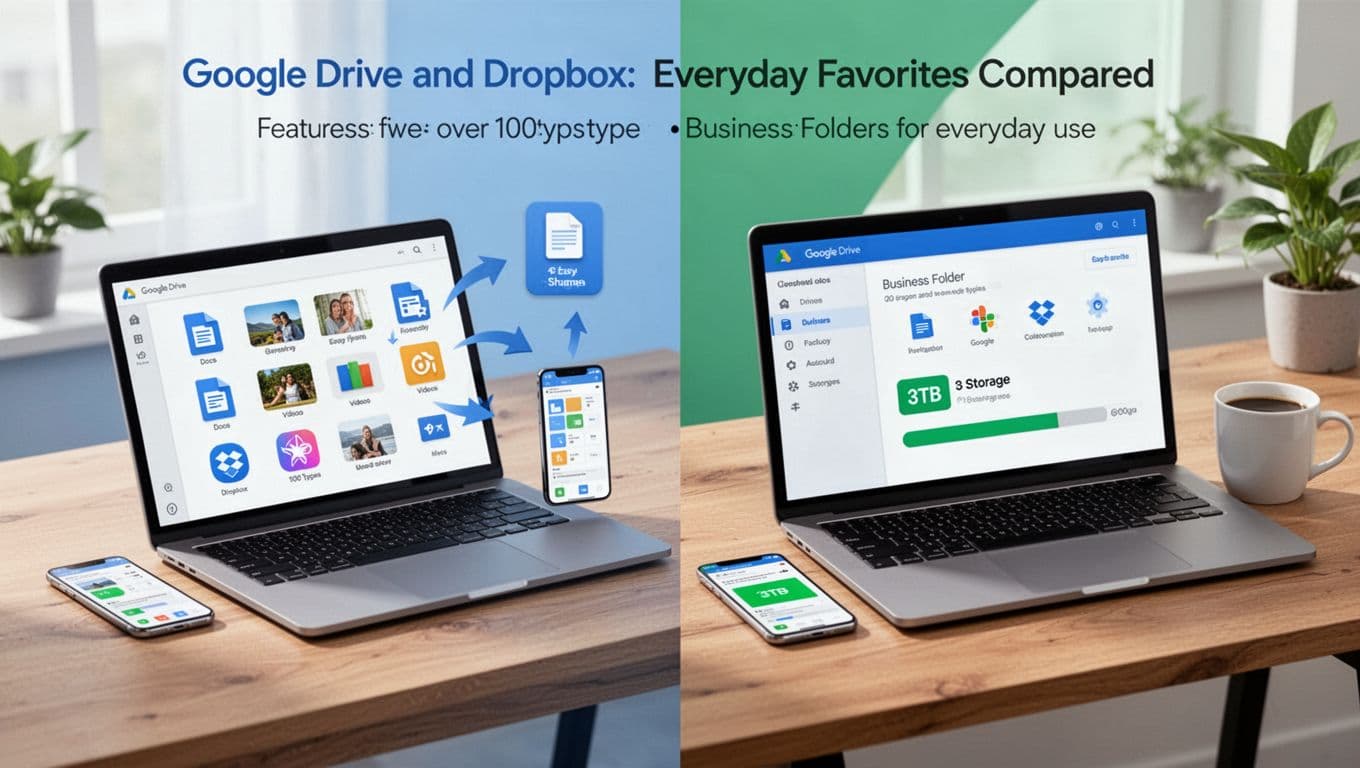
Google Drive and Dropbox are the two “default” cloud options for many people in the US. Both are simple, both work across phones and computers, and both make file sharing feel less like a chore.
Here’s how they tend to differ in real life.
Google Drive: great if your files live in Google apps
Google Drive plays well with Gmail, Google Docs, Sheets, and Slides. That matters because many people don’t treat cloud storage as a separate task. Instead, they store files as part of their daily email and editing flow.
A few practical perks:
- Free storage starts at 15GB.
- File support is broad, including common office docs, photos, videos, and media exports.
- Sharing is easy, especially if others also use Google accounts.
For pricing, Google Drive’s entry paid tier is also friendly for new users. The 100GB plan starts at $1.99/month.
Dropbox: strong for business workflows and bigger paid storage
Dropbox tends to feel “work-first,” especially when you manage folders, teams, and shared projects. It also offers clear paid storage tiers that work well if you hit the free limit fast.
What many people like:
- Free storage is smaller (often 2GB), so you may upgrade sooner.
- Paid storage can go higher for individual users (often 3TB on larger plans).
- Business tools can be easier to reason about if your files involve clients or teams.
When to choose each (quick guidance)
Use this rule of thumb:
- Choose Google Drive if you already use Gmail and Google Office every day. The free 15GB also gives you room to start.
- Choose Dropbox if you want a more “folder and team” feel, and you expect to upgrade to larger storage.
If you want a deeper comparison, check Dropbox’s side-by-side on Google Drive. It’s a vendor page, but it can still help you map features to your routine.
Privacy Heroes: Why Sync.com and pCloud Stand Out
Most cloud services use strong security, and that’s important. Still, privacy-focused users often want more than “secure enough.” They want a setup where encryption reduces how much the provider can read.
That’s where Sync.com and pCloud stand out.
Sync.com: zero-knowledge style security
Sync.com is known for a zero-knowledge approach and end-to-end encryption. In plain terms, your data gets encrypted in a way that makes it much harder for anyone else to access the content.
That approach matters most for files like:
- Tax documents and forms
- Passport scans and identity docs
- Medical records (or anything with sensitive health info)
- Password-related files stored by mistake (we all do it once)
One tradeoff: Sync.com may not offer a free tier in the same way as the big brands. If privacy is your priority, that cost can make sense because you’re paying for stronger protection habits.
pCloud: strong privacy with balanced usability
pCloud usually hits a good middle spot for people who want privacy without giving up everyday ease. It’s known for offering an encryption option (often described as client-side or end-to-end for selected use cases), so you can protect files while still using the service like a normal drive.
People often pick pCloud when:
- They want simple upload and sharing
- They also want a privacy option for sensitive folders
- They prefer a pricing approach that can stay affordable longer-term
How to decide in one minute
If you’re storing documents you’d hate to see leaked, pick Sync.com for its privacy-first model. If you want solid protection but also want everyday speed and value, pCloud is often the practical choice.
Quick Look at Free Storage and Starter Plans
Free storage and starter pricing decide what you feel comfortable with in month one. Then, file limits and device fit decide whether you stick with it.
Here’s a quick scan of the free tiers people commonly start with, plus a common low-cost upgrade path. (Pricing can change, so always verify inside the app before you commit.)
| Service | Typical free storage | Common starter upgrade example |
|---|---|---|
| Google Drive | 15GB | 100GB plan for $1.99/month |
| Dropbox | 2GB | Paid plans start around the low-$10/month range |
| Microsoft OneDrive | 5GB | Often $1.99/month for small upgrades |
| Apple iCloud | 5GB | Paid tiers vary by device needs |
| Sync.com | Often limited/no free tier | Paid plans focus on privacy features |
| pCloud | Often limited free tier | Paid plans often stay budget-friendly |
What this means for real users
If you’re choosing between Google Drive and Dropbox, start with this. Google Drive usually gives you more free room, so it’s easier to test without paying. Dropbox often nudges you to upgrade sooner because the free amount is smaller.
If you live on Windows and Office, OneDrive tends to feel natural. For Apple users, iCloud is usually the smoothest default.
Meanwhile, Sync.com and pCloud are best when security matters more than free space. For sensitive files, paying early often saves you from a bigger risk later.
In the end, your “best” service is the one you actually keep using. Pick the one that matches your devices first, then matches your privacy needs.
Follow These Easy Steps to Store Your Files in the Cloud
Once you pick a cloud service, storing files becomes almost boring. You sign in, install the app, upload your files, and set the right sharing and backup rules. After that, your cloud space turns into a simple home base for photos, work docs, and anything else you want to keep safe.
Below is a beginner-friendly setup that works with Google Drive (and similar services) and does not require tech skills.
Step 1: Sign Up and Create a Strong Account
Start at the provider website, then create your account with an email address and a password. Choose a password that mixes letters, numbers, and symbols, so it’s harder to guess.
Next, look for two-factor authentication (2FA). Turn it on if it’s available. That extra step acts like a second lock on the door, even if someone gets your password.
For example, with Google Drive you’ll typically create a Google Account first, then you’ll have access to Drive right away. You’ll also often share the same login with other Google apps, which makes file saving feel natural.
Before you move on, check one small but important detail: make sure your recovery email and phone number are correct. If you ever lose access, these details help you get back in fast.
Step 2: Download the App for Seamless Syncing
Now install the cloud app on your phone and computer. This matters because auto-sync keeps your latest files in the cloud without you manually uploading each time.
On your phone, install the app from the App Store (iPhone) or Google Play (Android). On your computer, you can usually use the web, but the desktop app often makes syncing smoother.
Here’s the simple idea: when auto-sync is on, your device regularly checks for changes. If you edit a file on your laptop, your phone sees the update later. In other words, you keep one version most of the time, instead of juggling “final” and “final2.”
If you only want to use a browser, you can skip this step. Still, apps usually make uploads and organization easier.
Step 3: Upload Your Files in Seconds
Uploading is the fastest part. You can drag and drop files into the cloud, or use the upload button inside the app.
For Drive on a computer, start with a small set, like:
- Photos from a recent camera roll
- A couple of work docs
- A PDF you often need
Then watch the upload progress bar. When it finishes, the file shows up in your Drive storage and becomes accessible from your other devices.
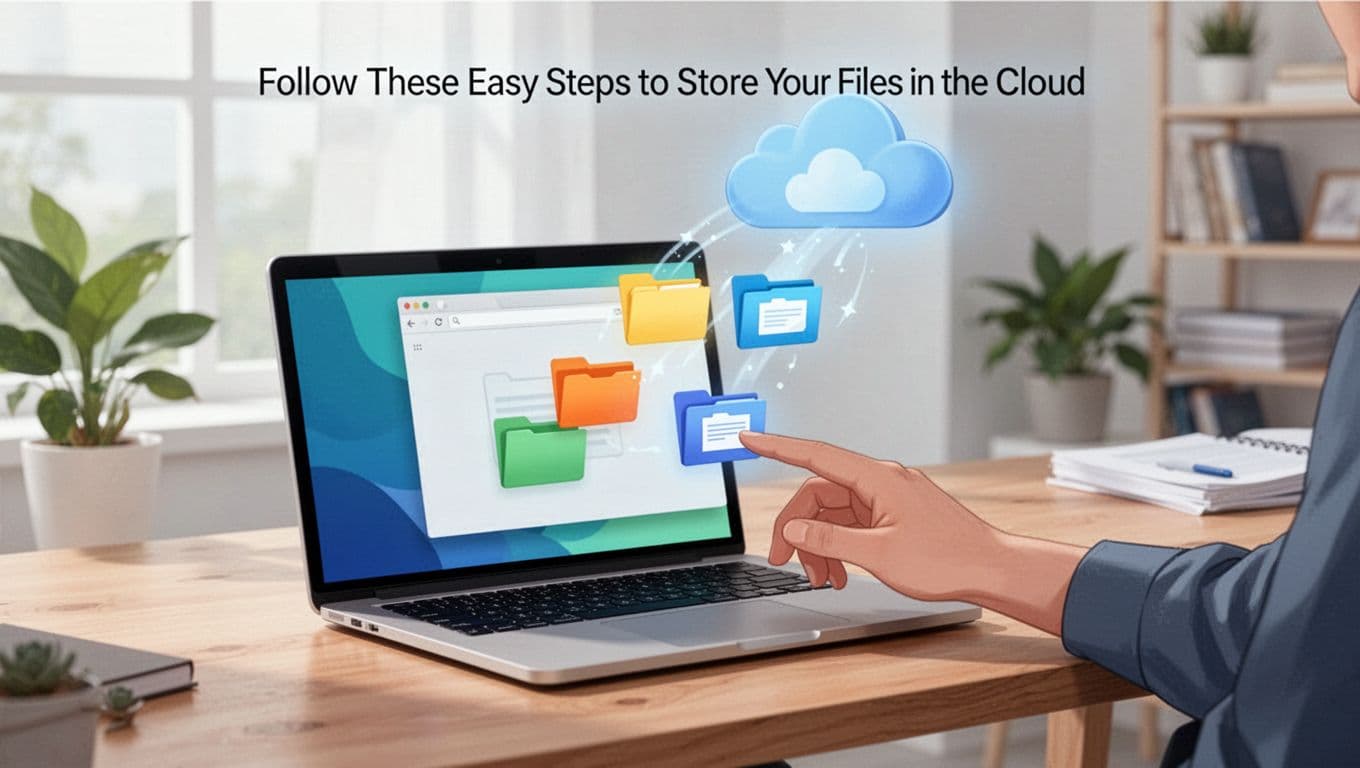
If you want the exact click-by-click steps for uploading files and folders, see Google Drive upload files and folders.
Step 4: Create Folders to Stay Organized
After your first uploads, organization becomes the difference between “cloud helpful” and “cloud confusing.”
Create folders that match how you actually think. Many people start with:
- Photos
- Work
- School
- Receipts
- Personal Documents
Then sort as you go. Drag files into the right folder right after upload, not weeks later. If you do it early, you save time every time you search later.
Also, keep folder names simple. Short, clear names beat clever names when you’re stressed and looking for something quickly.
Step 5: Share Links Safely with Controls
Sharing should feel controlled, not risky. Most cloud apps let you generate a share link, then choose who can access it.
Use share links like this:
- Open the file or folder.
- Choose Share or Get link.
- Set permissions to view only when you just want people to see.
- Use expiration dates if the service offers them.
For instance, you might share a folder of vacation photos with view-only access. That way, guests can download but cannot edit your originals.
If you want details on how folder permissions work, check Share folders in Google Drive.
Step 6: Set Up Backups for Extra Safety
Last, protect yourself from accidental loss. Uploads help, but backups add peace of mind.
Turn on auto-backup for the folders that matter most. With many services, this includes photo backup from your phone, plus key folders on your computer.
A good beginner setup is to back up:
- Your Photos folder
- Your Desktop (only if it’s manageable)
- Any folder that holds important work docs
Also pair cloud backup with an external drive if your files are truly irreplaceable. Cloud storage is great, but having a second physical copy for critical items adds extra safety when something rare happens.
Lock Down Security and Dodge Common File Storage Mistakes
Before you upload anything else, lock down security. Think of cloud storage like a mailbox with a camera on it. Without the right locks and settings, it only looks safe from the outside.
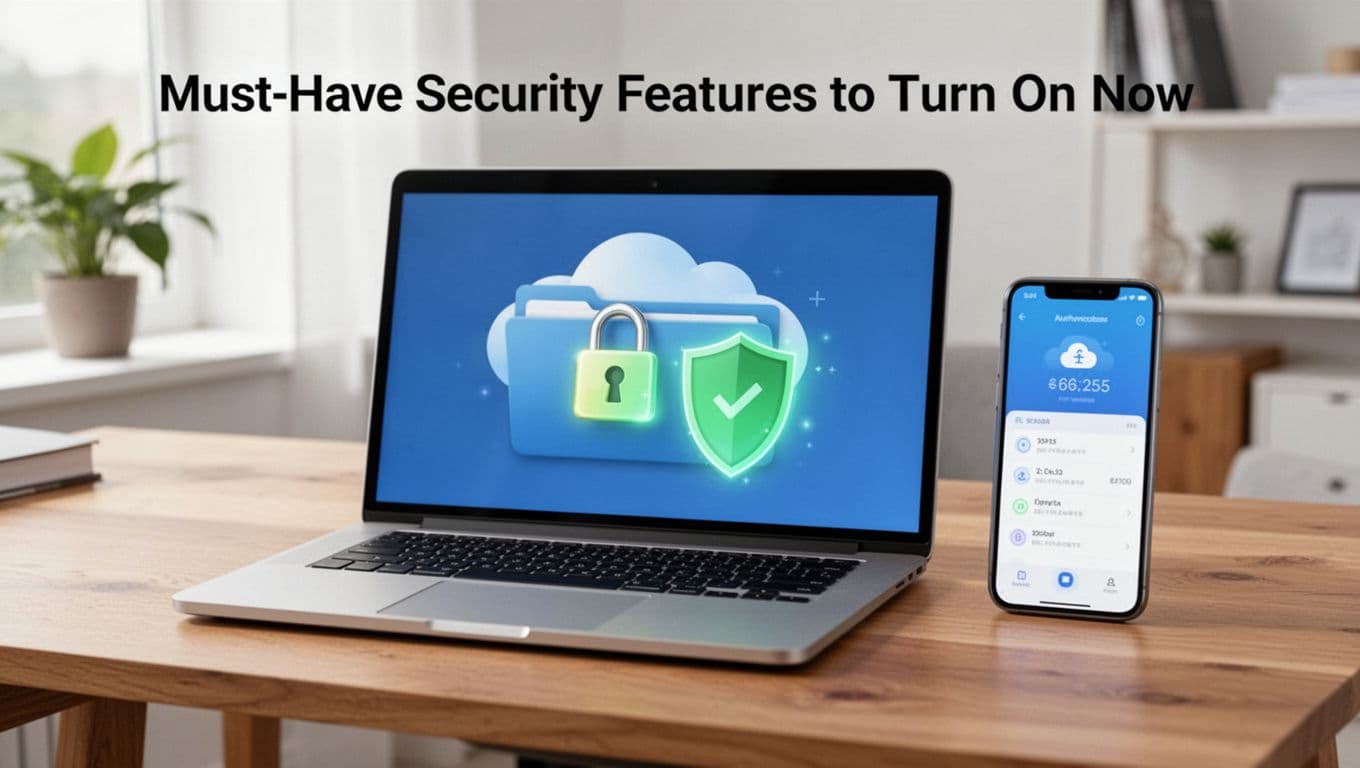
Must-Have Security Features to Turn On Now
Start with 2FA. It adds a second step when someone tries to sign in. Even if a password leaks, 2FA can stop the break-in. Most providers let you use an authenticator app or codes sent to your phone. If you want a clear setup guide, use Sync.com’s help for enabling 2FA and pCloud’s 2FA instructions.
Next, pick encryption options that match your comfort level. Some services offer end-to-end or client-side style encryption for selected use cases. That means your files get encrypted in a way that limits what the provider can access. For privacy-minded users, Sync.com and pCloud are strong picks because they put protection choices close to where you need them, not hidden in jargon.
Finally, use a password manager. It does two big things: it generates strong passwords, and it keeps you from reusing the same one. Also, update your apps, because security fixes ship with updates.
Troubleshoot Issues Like Slow Uploads or Lost Access
When something goes wrong, don’t panic. Most cloud issues come down to a few fixable causes: your connection, an account recovery problem, or a stalled sync task.
If uploads feel slow, first check your internet speed and switch networks if needed (Wi-Fi to mobile data, or the reverse). Then pause and restart the upload. Large files also take longer because services verify file integrity and may check for duplicates.
When you see a stuck status, look at your app’s activity or transfer queue. One common sign is that the progress bar moves for a moment, then stalls for a long time. In that case, try:
- Close and reopen the app
- Restart your device
- Update the cloud app
- Retry one smaller file first
For lost access, recover access using your recovery email or phone. If you keep getting blocked during recovery attempts, wait it out and confirm you entered the right details. Also check that your clock and time zone are correct on your device, since login checks can fail if time is off.
In 2026, providers increasingly use AI malware detection to scan for risky files and patterns, but scams and wrong access settings still cause trouble. So when you troubleshoot, verify permissions and shared links before you assume a security problem.
Conclusion
Cloud storage works best when you pick a service that fits your life, then set up your system the same day. Start with a simple choice like Google Drive for everyday use, or Sync.com if privacy matters most to you, then upload your first file, create a folder, and turn on auto-backup.
Once your files live in the cloud, you get the two things you care about most: room on your devices and access from anywhere. You also get stronger protection by using 2FA, smart sharing links, and the security settings your provider offers.
Next, keep an eye on where cloud storage is going in 2026. AI file search and AI threat detection are becoming more common, and pricing is shifting toward paying for what you use, not just raw space. Ready to move forward with confidence and never lose a file again?
Which cloud service are you using right now, Google Drive, Dropbox, OneDrive, Sync.com, or pCloud, and what did you upload first?