
If your files are scattered across downloads, thumb drives, and three “final” folders, you’re not alone. Emails pile up, study notes change every day, and sharing anything feels harder than it should.
Cloud tools fix that by keeping your work and school files in one place. You can access them from any device, and updates sync in real time. Plus, many services include automatic backups and free starter plans.
In this guide, you’ll pick the right mix of cloud tools for your routine, set them up in about 10 minutes, and use daily habits that make collaboration easier. Then you’ll lock down your setup so your study notes and work files stay protected in 2026, even as AI features expand.
Pick the Right Cloud Tools to Fit Your Work and Study Routine
Start with one question: what do you do most, write, meet, plan, or store? Most people use a mix, so think in “jobs,” not in apps. Also, try to choose a small set of tools that already work well together.
Here’s a simple way to match tools to needs.
| Cloud need | Tool examples | Best for |
|---|---|---|
| Docs, email, calendars | Google Workspace, Microsoft 365 | Team work, meetings, scheduling |
| Notes and tasks in one place | Notion | Research, study plans, custom workflows |
| File storage and share links | Dropbox | Safer sharing than email attachments |
| Video calls | Zoom | Study groups, client check-ins |
| Project planning | Asana, Trello, Wrike | Timelines, boards, task tracking |

If you switch apps every hour, you lose focus. That’s why all-in-one suites help. They reduce copy-paste work and keep updates synced.
Also, don’t ignore free tiers. Many teams and students can start with free plans, then upgrade when you hit real limits. In 2026, AI features are showing up in more plans too, so it’s a good time to test.
For background on how the big suites compare, see Microsoft 365 vs Google Workspace in 2026.
Full Suites for Docs, Chats, and Schedules
If your work includes writing plus meetings, start with a suite.
Google Workspace often feels smooth for shared docs. You can edit in real time, comment, and meet in one place (Drive, Docs, Meet). It also fits study groups well, because everyone can edit the same outline during a session.
Microsoft 365 brings strong tools for schedules and collaboration. Teams, Outlook, and OneDrive work together, and offline desktop apps can matter if your internet drops. If your school or workplace already uses Microsoft tools, it can save time.
You can also reduce “email ping-pong.” Instead of attaching files, share a link from Drive or OneDrive. Then chat and meetings stay attached to the right topic.
Meanwhile, Lark is worth a look if you want an all-in-one hub for chat, docs, and teamwork. It can feel budget-friendly, especially for small groups.
Task and Project Managers for Staying Organized
Docs help you write. Project tools help you finish.
Notion works great when your tasks need structure. Build a database for classes, readings, and due dates. Then connect it to a weekly view.
Asana is strong for teams and projects. Use it for work sprints, client tasks, and study timelines. Visual boards also make it easier to spot what’s stuck.
Trello is simple and flexible. It’s a good fit for students who want boards for each class. Move cards as you go, instead of rewriting your plan each week.
Some teams also use Wrike for more formal workflows. If you manage approvals or multi-step processes, it can fit well.
The key is to pick a tool that matches how you think. Boards work for many people. Lists work for others. Custom databases work when you want control.
File Sharing and Video Tools Essentials
Sharing matters as much as writing.
Dropbox is popular because it makes link sharing easy. It can also handle larger files than email attachments. For group work, share a folder and let people upload there.
Zoom remains a default for video calls. It’s useful for study sessions and quick client check-ins. Use it when you need clear audio and quick screen sharing.
A simple setup looks like this: store the files in one cloud drive, then call from Zoom. In your notes, link to the shared folder. That way, you don’t hunt for the right version later.
Set Up Your Cloud Workspace Fast and Simple
You don’t need a perfect system on day one. You need a system that you’ll actually use.
Start small. Pick two or three tools and set up only what you need this month. Then build from there once you see what breaks.
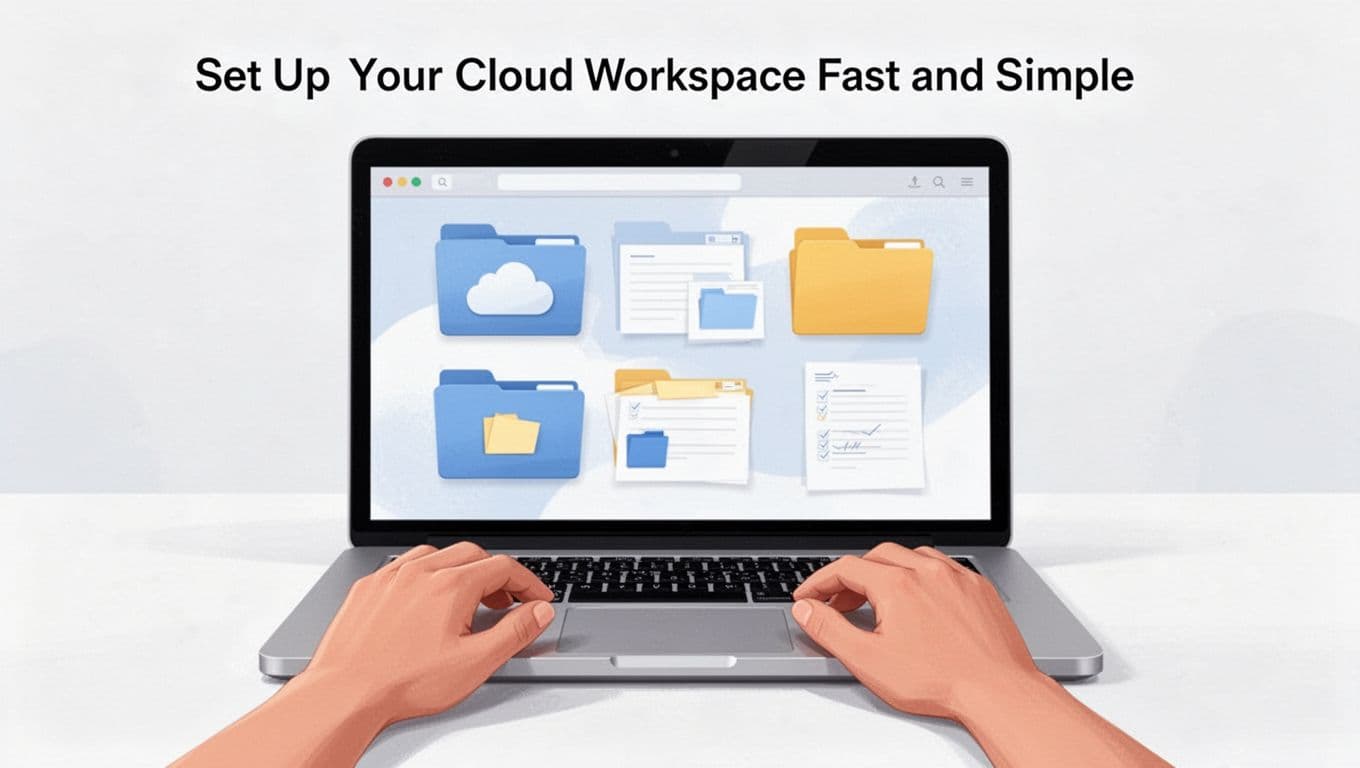
Create Accounts and Organize Your Space
Aim for a 10-minute setup. Here’s a fast path.
- Choose your suite (Google Workspace or Microsoft 365).
- Add one “work hub” (Notion or Lark).
- Add one storage/sharing tool if your suite isn’t enough (Dropbox, for example).
After you sign up, import anything you already have. Then create folders that match real life.
Use folder names like:
- Work Projects
- Study Notes
- Receipts and Admin
- Shared with Team/Group
Next, upload your key files once. Then stop thinking about them. Cloud tools work best when you don’t keep “reorganizing” every day.
Finally, adjust notifications. If you mute everything, you’ll miss deadlines. If you allow everything, you’ll drown in noise. Find the middle.
A practical gotcha: sharing permissions can change how safe a file is. So share a link, not the whole folder, when you only need read access.
If you can’t explain your sharing settings in one sentence, tighten them before you share more.
Link Tools for Seamless Flow
Once your accounts exist, connect them so work moves forward.
Examples that save time:
- Add Zoom meeting links inside a Notion page for each class session.
- Create tasks in Asana, then attach the matching Drive or OneDrive file.
- Share Dropbox links in a doc so students see the latest version.
The goal is simple. Don’t copy files around. Instead, update the one source of truth, and let links point to it.
Also, keep your calendar clean. When deadlines live in one calendar, you spend less time guessing. Many teams schedule work reviews and study sessions right there.
When something feels slow, fix the workflow first. Most “sync problems” come from missing folder permissions or overly complex sharing rules.
Daily Habits That Maximize Cloud Power for Productivity
Cloud tools don’t help by themselves. Your habits decide whether they save time or create clutter.
Use a simple rhythm:
- capture quickly
- organize once
- review daily
- share only when needed
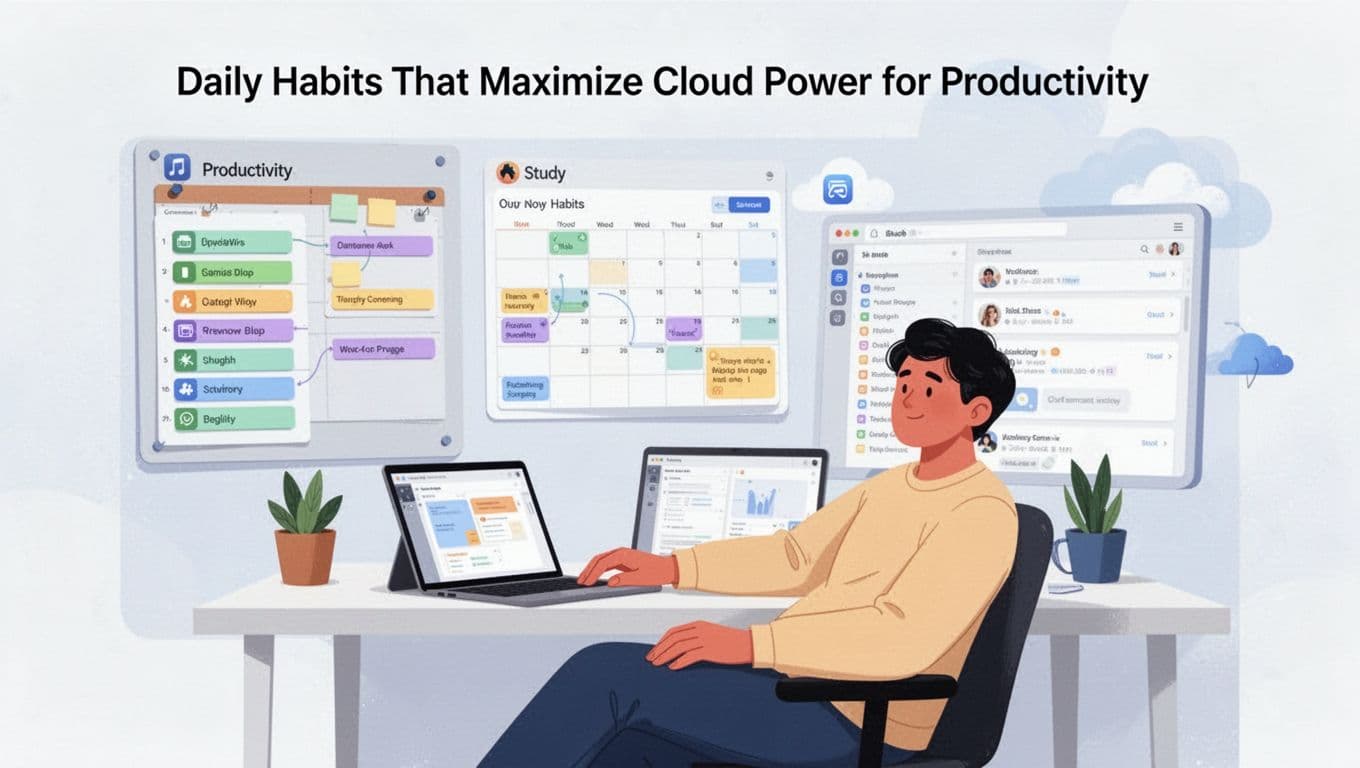
Also, treat your cloud workspace like a desk with drawers. You don’t toss papers everywhere. You file things so you can find them fast.
Productivity Hacks for Work Tasks and Study Sessions
Start with templates. Many cloud apps let you reuse page layouts, meeting notes, or task structures. That way, you don’t build the same thing from scratch each week.
Next, batch small file actions. For example:
- upload study PDFs at the end of each day
- save drafts in one folder, then move them weekly
- create a shared link once, then reuse it for the group
Then use AI features for the “boring parts.” In 2026, AI inside suites and hubs can summarize notes, help draft outlines, and speed up repetitive writing. For Notion specifically, custom skills can turn repetitive AI tasks into quick commands. See Custom skills for Notion AI.
One good use case: you paste a rough research snippet into Notion. Then you ask AI to generate a study outline. You still edit it, but you start from a real draft.
Finally, track progress visually. For study, your “done” list can be:
- readings completed
- quizzes taken
- key notes summarized
- practice problems solved
For work, it might be:
- tasks moved to “In Review”
- approvals collected
- deliverables shared
Cloud tools make this easier because your board and docs update together.
Handle Teams and Deadlines Like a Pro
Teams move faster when everyone sees the same truth.
Use role-based access when possible. Give editors to people who truly need to change files. Give viewers to everyone else. If your group shares study notes, keep editing tight and comments open.
Also, set alerts for key dates. Calendar reminders help, but so do task notifications. Just don’t set so many alerts that you ignore them.
When multiple people edit a doc, keep the structure clear. Use headings, short sections, and a shared checklist. That reduces confusion during group study sessions.
The best cloud setup doesn’t just store files. It reduces back-and-forth.
If you want an extra layer for costs or multi-cloud visibility, tools like Holori can help some advanced users compare cloud spend and usage. For a starting point, see The 10 Best Cloud Management Platforms in 2026.
Even if you never become “advanced,” the mindset helps. You should know where your files live, who can access them, and which tools you actually use.
Secure Your Cloud Setup and Watch 2026 Trends
Security isn’t optional, especially with shared study files and client work. One wrong link can expose more than you think.
So think in layers. Use account protection first. Then limit sharing. Then watch for risky behavior.

In 2026, AI is also changing security workflows. Some tools help detect odd access patterns and unsafe sharing. Still, you stay in control.
A good place to start is 13 cloud security best practices for 2026 – Sysdig. It’s a clear list you can adapt to your setup.
Essential Steps to Lock Down Your Data
Use these basics across your cloud tools:
- Turn on two-factor authentication (2FA) for every account.
- Use strong passwords (a password manager helps).
- Limit “public” links. Prefer link access for specific people.
- Review access monthly, especially for shared class groups.
- Keep backups for important files (some apps handle this automatically).
Also, avoid keeping sensitive info in random notes. If you share study notes publicly by accident, that’s hard to undo.
If a platform offers encryption settings for shared files, check them. You don’t need to understand every detail, but you should know what’s protected.
Finally, watch for unusual login alerts. Most security tools can send an email when a new device logs in. If you get that message and you don’t recognize it, act fast.
Spot Trends to Future-Proof Your Routine
What’s changing in 2026?
First, AI automation is moving deeper into everyday work apps. That means more tasks happen automatically. You need to review what AI generates, and you should understand where it stores prompts and outputs.
Second, multi-cloud setups are common. People use Google for docs, Microsoft for spreadsheets, Notion for notes, and Dropbox for sharing. That’s fine, but it raises the number of places to secure.
Third, observability and governance are becoming normal in business tools. For individuals and students, the “equivalent” is simpler: check permissions, keep 2FA on, and know which tools hold your most important files.
So start small. Pick one suite, one hub, and one sharing method. Then improve security and workflow over time.
If you feel overwhelmed, reduce choices. Security gets easier when your tool list is short.
Conclusion: Build a Cloud Habit You Can Keep
Cloud tools work best when your setup matches your routine. When everything lives in one place, you waste less time hunting for files and redoing work.
Start with a suite like Google Workspace or Microsoft 365, add one organization tool like Notion, and use a sharing method you trust. Then lock down accounts with 2FA and tight sharing rules.
If you’ve been thinking about cleaning up your workflow, do one concrete thing today: create a “Work Projects” and “Study Notes” folder, then move your top 10 files there.
What’s your go-to cloud tool right now, and what’s one part of your workflow you want to simplify first?