How to Use Cloud Services on Mobile Devices (Android & iPhone)
Tired of deleting photos to free up space? You’re not alone, and your next fix is simpler than you think. When you use cloud services on mobile devices, your files upload to the cloud, so your phone storage stays light while you still get to your stuff fast.
Cloud storage also helps you access and share from anywhere. Automatic backups keep pictures and key files in sync, so you don’t lose them when your phone gets full or you switch devices. Plus, sharing links is usually one tap, which makes it easy to send albums, docs, or work files to friends and coworkers.
If you bounce between apps, cloud services help you work across screens and teams. For example, Google Drive is popular for collaboration, Dropbox works well across Android and iPhone, and OneDrive fits naturally if you use Microsoft 365. On Apple devices, iCloud backs up photos and data with iPhone-friendly sync, while pCloud stands out for its lifetime storage options and flexible sharing features.
In the sections ahead, you’ll learn how to choose the right service, set it up quickly on your phone, use it day to day, and lock things down with strong security settings. You’ll also see what’s changing in 2026 as backups and privacy tools improve.
Next, let’s start with how to pick the best cloud option for your needs.
Quick Comparison of Free Tiers and Plans
If you want the fastest decision, start with two questions: How much free space do you get? Then ask, Which mobile feature you will actually use? For 2026, the sweet spot often depends on whether you care more about sharing, photo and media handling, or privacy.
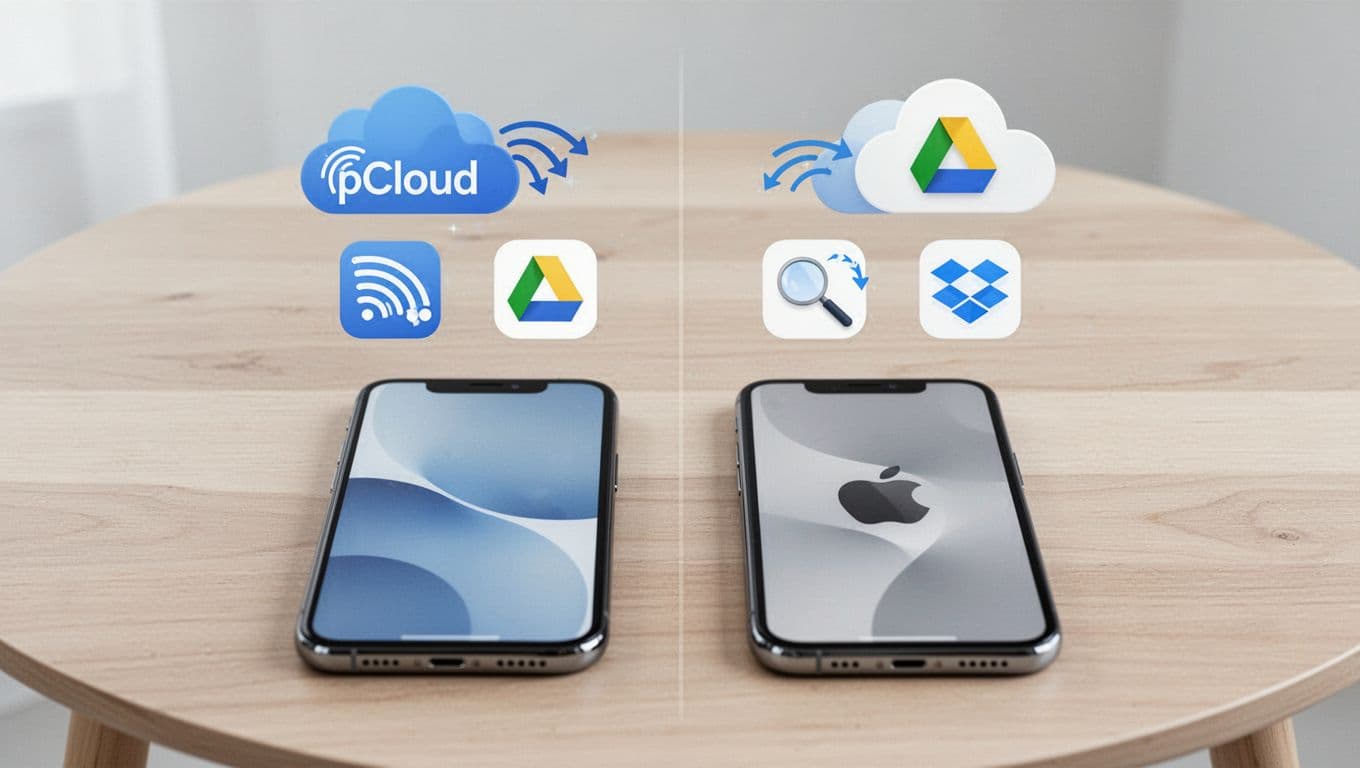
Here’s a quick comparison of the free tiers and the most common paid paths, based on current figures:
| Service | Free storage | Typical paid direction | Mobile perk to watch |
|---|---|---|---|
| pCloud | 10 GB | Lifetime 2TB option (commonly seen around $399 for 2TB) | Media access, including streaming-style playback for supported files |
| Google Drive | 15 GB | 2TB around $99.99/year | Strong sharing, plus AI search inside Google tools (widely used on phones) |
| Dropbox | 2 GB | Paid plans start modestly, grow with more storage | Reliable cross-device sync, so files appear where you expect |
| OneDrive | 5 GB | Often bundled via Microsoft 365 | Works especially well with Office docs and Microsoft accounts |
| iCloud | 5 GB | Apple storage tiers scale upward | The iPhone-native backup and sync flow feels automatic |
| IDrive | 10 GB | High capacity focus (unlimited devices) | Great if you want backup across many devices under one login |
| NordLocker | 3 GB | Smaller entry tier aimed at security | Privacy-first approach with strong encryption options |
For a quick reality check, free tiers can feel generous at first. Still, they fill up fast if you shoot in 4K, save many offline videos, or store large photo libraries.
One standout here is pCloud, especially if you hate recurring bills. Lifetime storage offers can turn into strong value over time, and pCloud’s mobile experience focuses on letting you access and play media without making your phone the bottleneck.
If you want one service that fits almost everyone, start with Google Drive. If you want long-term value, look harder at pCloud.
At the same time, don’t ignore what your phone can do quietly in the background. Some services shine only when they connect deeply to your device. That brings us to picking the right app for your habits.
Match a Service to Your Phone and Habits
Choosing the best cloud storage app is less about what’s popular and more about what matches your daily routine. Think of it like picking the right car seat for your commute. You can drive in any seat, but you will feel the difference every day.
Start with your platform.
- iPhone users, lean toward iCloud
iCloud fits naturally with the way iOS already backs up and syncs. Photos, files, and device settings tend to line up without extra steps. If you want “set it and forget it,” that’s the iPhone lane. - Android users, start with Google Drive
Android and Google Drive play well together, especially if you already use Chrome, Gmail, or Google Photos. It also makes sharing quick, and it pairs with AI search features when you’re looking for files fast. - Cross-platform households, go with Dropbox or pCloud
If your group mixes Android and iPhone, you want one app that doesn’t act weird on one device. Dropbox is known for smooth sync, and pCloud adds a strong value angle with lifetime plans. - Office-heavy users, consider OneDrive
If you work in Word, Excel, or PowerPoint on mobile, OneDrive keeps those files close. It’s also a natural fit if your life already runs through Microsoft accounts. - Privacy fans, explore NordLocker
NordLocker is built with privacy in mind, and it’s a good choice when encryption matters more than extra storage size. If you care about locking down sensitive folders, this is the direction to check.
Then, look at your habits. Do you stream or watch media often? Do you share big files with coworkers? Most people do one of those more than they admit.
Here are simple match-ups that tend to work in real life:
- If you frequently share albums or documents, Google Drive is usually the quickest path.
- If you store lots of photos and want iOS-style backup, iCloud feels effortless.
- If you want to avoid monthly fees and plan for the long haul, pCloud lifetime often wins on value.
- If you need cloud backup across many devices, IDrive’s unlimited-device approach can save time and confusion.
Finally, keep an eye on encryption and privacy options as you decide. Some services offer stronger privacy modes than others, especially for users who want tighter control over what can be read and by whom.
Once you’ve matched a service to your device, the next step is setting it up so it actually saves you space and time.
Google Drive and Dropbox: Universal Setup for Any Phone
If you want a cloud setup that works on almost any phone, Google Drive and Dropbox are the easiest starting points. Both apps handle uploads, keep files in sync, and make sharing simple. Better yet, you can turn on background photo uploads so your phone stops acting like the only storage space you have.
Google Drive and Dropbox: quick setup (download, sign in, turn on backups)
Start by installing the app from your app store. Then follow the same mindset for both services: get logged in first, then switch on the features that move photos and files automatically.
Google Drive (Android or iPhone)
- Open the app store, install Google Drive, then open the app.
- Sign in with your Google account.
- Tap + (or the Upload button).
- Pick the files you want, then confirm the upload.
Now set it to save photos without manual work.
- Go to the Drive settings inside the app.
- Find Backup or Photos options.
- Turn on auto upload over Wi‑Fi (this matters most for data use).
- If you see an option for upload quality or size, choose what fits your storage needs.
When auto upload runs over Wi‑Fi, your phone can keep shooting without burning your cellular plan.
For official app setup details, see how to use Google Drive on mobile.
Dropbox (Android or iPhone)
- Install the Dropbox app from the app store.
- Sign in with your Dropbox account.
- Open Uploads or Camera uploads in settings.
- Turn on camera uploads, then choose how uploads run.
Next, focus on the photo setting that keeps things comfortable:
- Set it to upload only when on Wi‑Fi (or choose a similar data-saving option).
- Confirm you want Dropbox to back up photos and videos from your camera roll.
Dropbox’s camera upload feature is designed to quietly back up your media while you live your day. For the feature overview, check camera uploads overview in Dropbox.
One small habit makes a big difference: after setup, open the app once on Wi‑Fi and let it finish syncing. After that, it usually feels automatic.
Sharing and saving space without extra work
Once uploads work, sharing becomes the easy part. In both apps, you can:
- Upload a file, then tap Share
- Send a link (instead of attaching big files)
- Let others view or download based on your link settings
Also, don’t rush to delete photos right away. First, confirm the upload completed. Think of cloud storage like a second home for your files. You move in, check the keys work, then you clean up your old room.
iCloud for iPhone Users and pCloud for Power Users
Apple users often stick with iCloud, because it feels built into the iPhone. Meanwhile, pCloud suits people who want extra control, especially around privacy and long-term storage value. Both can be fast, but they feel different on the phone.
iCloud: turn on the right toggles inside Settings
With iCloud, you control what syncs. Start in your iPhone’s settings app, not inside random menus.
Use this flow:
- Open Settings.
- Tap your name (Apple ID) at the top.
- Tap iCloud.
- Turn on the toggles for the items you want, like Photos, Drive, or Backups.
If you want your photos to move smoothly, focus on the iCloud photos feature. It keeps your picture library synced across devices. Also, iCloud handles backups, so your iPhone can restore settings and apps if you switch phones later.
For the official setup guide, reference set up iCloud on your devices.
A common gotcha is forgetting you can turn things off. If you disable an iCloud toggle for a feature on one device, that feature stops syncing there. So, do a quick check before you rely on it.
pCloud: create an account, then use streaming and crypto features
pCloud setup starts with installation and sign-in. After that, you can decide how you want files handled.
Do this on your phone:
- Install pCloud from the app store.
- Sign in (or create an account).
- Follow the prompts for permissions so uploads work.
Then set up the pCloud experience you care about most:
- Streaming-style access for supported media, so you can view files without pulling everything to your phone first.
- Optional encryption via pCloud crypto folder if you want a private area.
To install and get started, use the official app install instructions:
When you set up a crypto folder, you change the way the service stores and handles those files. For many power users, that’s worth the extra step because it adds an extra layer of privacy for sensitive documents.
Ease vs control: which one fits your habits?
Here’s the simple trade-off.
| Service | Best for | Setup style | What feels easiest on mobile |
|---|---|---|---|
| iCloud | iPhone-first users | Turn on toggles in Settings | Photo sync and iPhone backup |
| pCloud | Power users | Install, sign in, then choose features | Crypto folder plus flexible media access |
If you want a “set it and forget it” feeling, iCloud usually wins. If you care more about file control, pCloud often feels more customizable.
Before you count on either one, open the app on Wi‑Fi and confirm uploads start correctly. After that, you get the main benefit of cloud storage: your phone stops being the single point of failure for your files.
Handle Daily Tasks: Upload, Share, and Stream Files Effortlessly
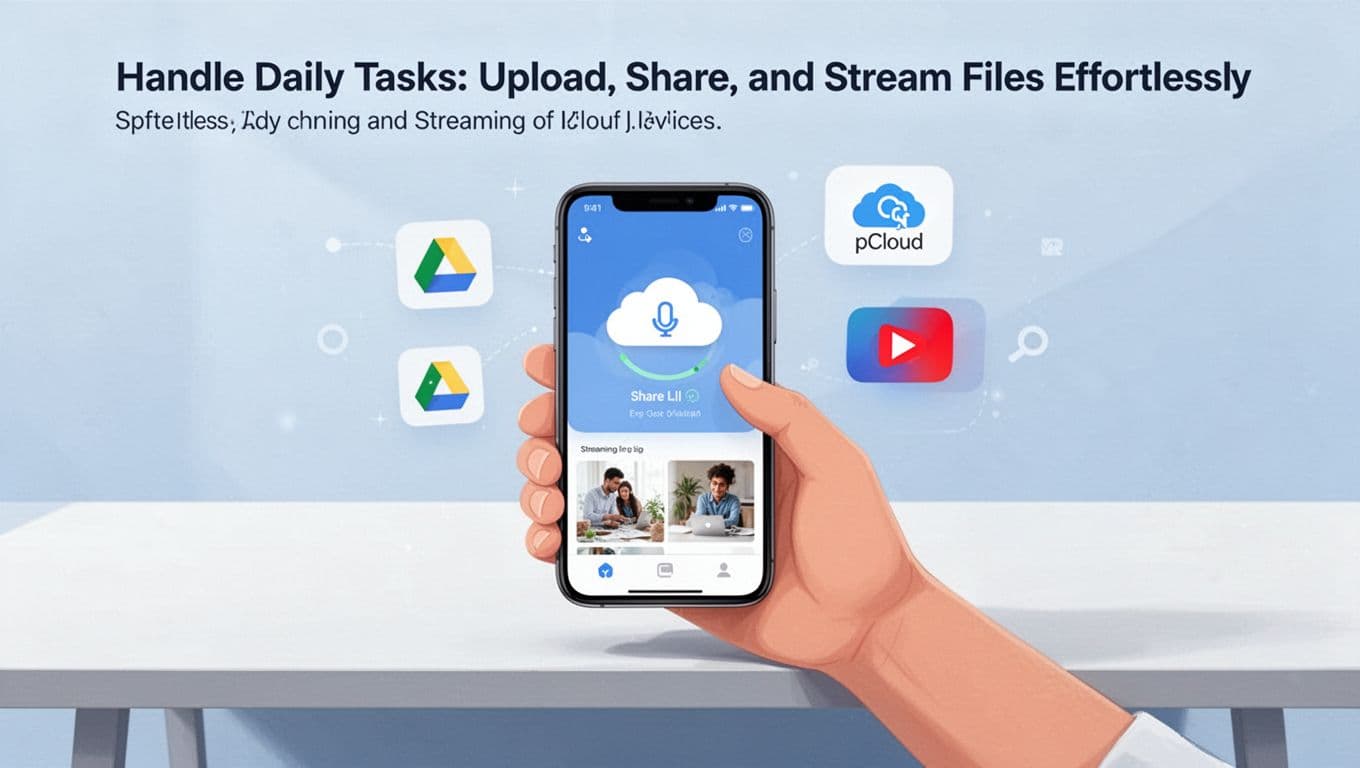
Once your cloud app is set up, daily use should feel like having a carry-on suitcase for your files. You grab what you need, it moves in the background, and you avoid the “where did I save that?” moment.
Upload photos and videos without thinking about storage
Start with the habit that saves you the most stress: auto upload. Most cloud apps let you upload camera roll media over Wi-Fi, so your phone does not fill up as fast.
When you want to upload right now, use the fast path:
- Open the cloud app.
- Tap Upload or +.
- Select photos or videos.
- Confirm, then leave the app open until it finishes.
After that, let the background feature do the work. On Google Drive and Dropbox, you can turn on camera uploads so new photos head to the cloud automatically. If you want the official steps for Google Drive, follow upload files and folders to Google Drive. For Dropbox-style camera uploads, the menu names vary by phone, but the idea stays the same.
For example, imagine you snap vacation pics at the beach. With auto upload on Wi-Fi, those photos land in your cloud folder before you even get home.
Share files and links safely (especially with passwords)
Sharing feels easy until you share the wrong thing or send a link to the wrong person. That’s where link controls help.
Most apps let you:
- Share a link instead of attaching huge files
- Set view vs edit permissions
- Add password protection (or require sign-in)
- Use expiry dates for sensitive files
So, if you send a work folder to a coworker, you can set it to view-only. Then you keep your edit rights for yourself. It’s like handing someone the key to a room, not your whole house.
Stream media without downloading (then go offline when you need to)
Streaming is the “try before you commit” option for media. With services like Google Drive, Dropbox, and pCloud, you can often preview or play supported videos from the app without downloading the full file first.
This matters when you’re on a train, or you want to save space. Meanwhile, offline access turns your smart cloud into something you can still use when signal drops.
Typical offline flow looks like:
- Mark specific files or folders for offline use
- Watch them sync when you get Wi-Fi
- Open them later without internet
pCloud, in particular, highlights streaming directly in the app, which helps when you want media access without pulling everything onto your phone.
Collaborate on docs from your phone, not just your laptop
Cloud storage helps you do more than move files. It also helps teams edit the same document at the same time.
In Google Drive, you can create or edit Docs, Sheets, and Slides with real-time collaboration. In OneDrive, Office apps support real-time co-authoring when you use Microsoft 365.
Here’s a simple day-to-day example: your team edits a shared agenda during a meeting. You review it from your iPhone, add a note, then everything syncs for the next update.
Keep it consistent across multiple devices
If you use both Android and iPhone (or a tablet too), consistency is everything. Choose one “home” app for file uploads, then rely on syncing.
A practical setup looks like this:
- Upload photos from your phone to the same cloud account
- Turn on offline access for the files you use daily
- Confirm sync on one device after you travel
Once that routine clicks, switching devices stops feeling like switching worlds. Your files show up where you expect, and your phone stops acting like the only place they live.
Keep Your Cloud Data Safe on Mobile with These Proven Tips
Mobile security feels like putting on a seatbelt every time you drive. You do it once, then you benefit every day. When you use cloud storage on your phone, security settings decide whether your data stays yours.
This section focuses on the fastest wins for Android and iPhone. Start with strong account protections first, then tighten what your phone does in the background.
Enable Encryption and Two-Factor Authentication First
First things first, protect the logins. Your cloud account is the front door, and weak access is how people get inside. Turn on two-factor authentication (2FA) and set a strong, unique password for each cloud service.
Then, confirm you’re using encryption. Most reputable cloud apps encrypt data in transit and at rest, but your job is to verify the option exists and is enabled. If your service supports extra private modes, use them for sensitive files.
Use this simple order, because it works:
- Turn on 2FA for every cloud account you use
Look for MFA or 2FA in the account settings. For Dropbox, the help page walks through the switch and what methods you can use, like an authenticator app Dropbox 2FA setup guide.
For pCloud, you can do the same in your account security settings pCloud two-factor authentication. - Choose an authenticator over SMS when possible
Authenticator apps usually feel safer than text codes. Still, both add a big extra barrier. - Enable encryption options inside the app (when available)
Some apps offer a private “vault” style area, which many people treat like a locked file cabinet.
If you want a privacy-first approach, NordLocker supports MFA and emphasizes account protection features in its help docs NordLocker MFA setup. pCloud also supports 2FA, which pairs well with its more private folder features pCloud two-factor authentication.
The point is simple: 2FA blocks password-only attacks, and encryption helps limit damage if something slips through.
Do this before you upload more files. Think of it like installing locks before you move valuables into your home.
Smart Habits to Avoid Common Mobile Pitfalls
Security fails in small places. You might have strong 2FA, yet still get burned through backups, permissions, or messy sharing. That’s why habits matter on mobile, where apps run constantly and networks change fast.
Start with backups on your own terms. If you let your phone back up over cellular, you can waste data fast and still miss what matters.
Use Wi‑Fi only backups for camera roll and large uploads. Many services include a toggle for it, and Google’s backup settings let you choose Wi‑Fi only behavior Wi‑Fi only Google backup settings. This also reduces the chance you upload sensitive files while connected to risky networks.
Next, review permissions. Apps ask for access when you install them, and your phone remembers. Go through these areas regularly:
- Photos and camera access (only allow when needed)
- Contacts access (avoid if you don’t use sharing features)
- Files and “manage storage” permissions (restrict if the app doesn’t need it)
- Location access (turn off unless a feature truly needs it)
Then, watch out for sharing mistakes. Cloud links are convenient, but they can also stay open longer than you think. Limit sharing and use controls when available:
- Set view-only instead of edit
- Add a password when sharing sensitive files
- Use expiring links so access ends automatically
- Revoke links after a task finishes
Finally, avoid mixing services in ways that confuse your security model. If you use one app for uploads and another for private storage, be careful about where files actually end up. People often create a “shadow copy” by accident, then forget which account holds the encrypted version.
Also, be extra careful with risky third-party “multi-cloud” tools. Some can sync cleanly, but they may broaden access paths. If you use a hub like Koofr to connect clouds, stick to reputable setups and review what gets synced Use Koofr as a multi-cloud hub. When in doubt, choose one primary cloud account for each type of file.
One more habit that saves you in real life: keep your apps updated. Updates fix security holes and also patch account login issues. After an update, do a quick check that 2FA is still active and camera uploads still run on Wi‑Fi only.
If you want a short “anti-hack” routine, do this monthly:
- Confirm 2FA stays on
- Check backup settings are Wi‑Fi only
- Review app permissions for camera and files
- Look for new login alerts
- Update the cloud apps you rely on
Mobile security is not just settings. It’s also how you share, where you back up, and how tidy you keep your permissions.
2026 Trends That Make Mobile Cloud Services Even Better
Mobile cloud services in 2026 feel less like “extra storage” and more like a quiet helper. Phone storage keeps getting filled faster, and apps keep creating more data. As a result, cloud tools now focus on smart sorting, stronger privacy, and smoother media play, right from your Android or iPhone.
Here’s what’s changing, and why it makes your day-to-day use feel better.
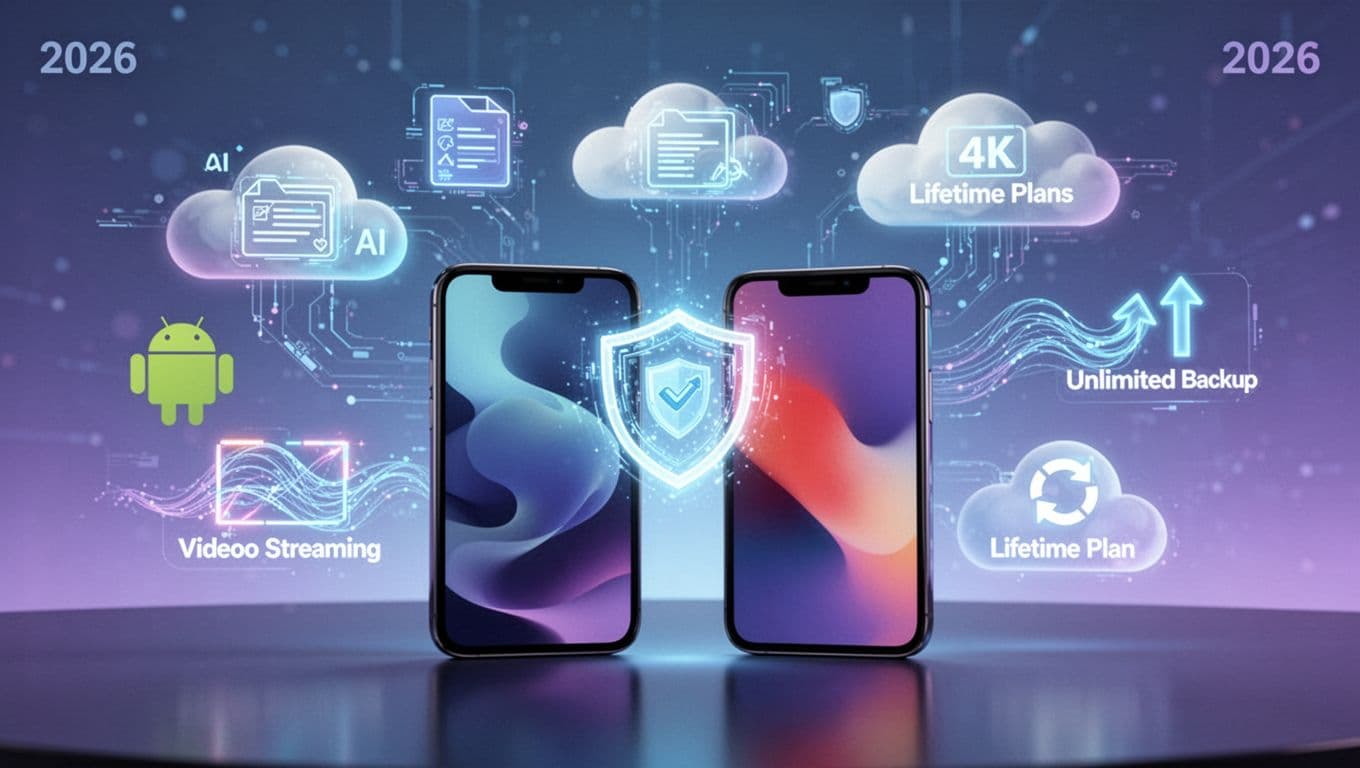
AI organization that actually saves time
In 2026, cloud apps spend less time waiting for you to sort files. Instead, they organize for you, using AI to group photos and documents in ways that make sense.
That means fewer manual searches when you need something fast. For example, AI can sort pictures by people, scenes, or events, so “that trip photo” becomes a quick find. It can also help with doc organization, where folders feel more like shelves and less like a messy drawer.
With Google Drive and OneDrive, you also get smarter discovery. OneDrive trends toward AI-based summaries and file tagging for Microsoft 365 users. Google Drive leans into phone-friendly AI sorting and faster retrieval across devices.
If you want a deeper look at how services compare overall, check best cloud storage of 2026. It’s a good place to see where AI features land across popular providers.
Lifetime plans keep their edge for long-term users
Subscription fatigue is real. So, lifetime options keep pulling attention in 2026, especially for people who store a lot of photos and videos.
pCloud’s lifetime plans still stand out because the cost model fits “keep it forever” habits. If you plan to store decades of media, a one-time payment can feel more predictable than renewing storage every year. Also, lifetime access can reduce decision stress. You stop wondering if you’ll lose files because a bill gets missed.
Of course, you still want to check what “lifetime” covers in practice, including mobile features and upload behavior. If you’re weighing value, review pCloud in 2026: Is It Still Worth It?.
Unlimited backups and faster uploads for busy families
Another big trend is backup-first thinking. Instead of “sync this folder,” you get plans built for automatic protection.
IDrive’s unlimited backup approach fits people with multiple devices and large media libraries. It also helps families, because you can back up each phone without constantly watching storage caps. In 2026, the experience also improves with faster mobile uploads and tools that reduce repeat uploads.
That matters because your phone doesn’t stop making new stuff. It takes more photos, records more video, and saves more app data. When backups keep up, your cloud feels like a safety net, not a chore.
If you want a clear comparison between IDrive and pCloud, see iDrive vs pCloud (2026): Which Cloud Storage Wins?.
Privacy and encryption keep getting stronger on mobile
Privacy pressure continues to rise. Users want the option to protect files so the provider can’t casually read them.
In 2026, more services push stronger encryption models, including approaches that rely on zero-knowledge style protection for sensitive storage areas. You’ll also see more biometric sign-in prompts and tighter controls around sharing links.
This is a big deal for mobile use because phones go everywhere. If you lose your device, or if someone gains access to your account, good encryption and better login protections limit the damage.
Think of encryption like a safe inside your cloud home. Even if someone finds the keycard, the files stay locked.
4K streaming gets smoother, even when Wi‑Fi is messy
Media files are bigger in 2026, and that pushes cloud services to improve playback.
You’ll see smoother 4K streaming thanks to better adaptive quality and smarter caching. So, buffering drops, and the player can adjust to your connection without killing your viewing time. In addition, some services use AI to compress or manage video playback more efficiently.
pCloud also leans into in-app media access, which helps when you want to watch without downloading everything. For mobile, that’s huge, because it keeps storage free while still giving you quick access.
If you want to sanity-check service features before switching, compare options using Best personal cloud storage services 2026.
Quick future-proof advice before you pick your next plan
You can make 2026 easier by choosing for how you use your phone, not for what sounds best in an ad.
Use this simple filter:
- Pick AI organization if you hate searching.
- Pick lifetime if you store lots of media long term.
- Pick unlimited backups if you have multiple phones.
- Pick stronger privacy if you store sensitive files.
- Pick better streaming features if you watch 4K often.
Finally, test on Wi‑Fi first, then on cellular. That one habit keeps surprises low and makes your cloud feel dependable from day one.
Conclusion
Using cloud services on mobile devices works best when you pick the right app, turn on auto upload, and keep security tight. Once your photos and files sync in the background, your phone storage stops running the show, and you get fast access from wherever you are.
For most people, the simplest next step is to start with Google Drive or pCloud. Turn on Wi-Fi uploads, confirm sharing link settings, and lock your account with 2FA so your cloud stays yours. Download pCloud or Google Drive now and free up your phone.
What’s your go-to choice right now, iCloud, Google Drive, Dropbox, or pCloud, and why?
If you like this topic, subscribe for more tech tips, and share your favorite service in the comments. Also, keep an eye on where things keep moving in 2026, with smarter file sorting, stronger privacy tools, and better mobile streaming.