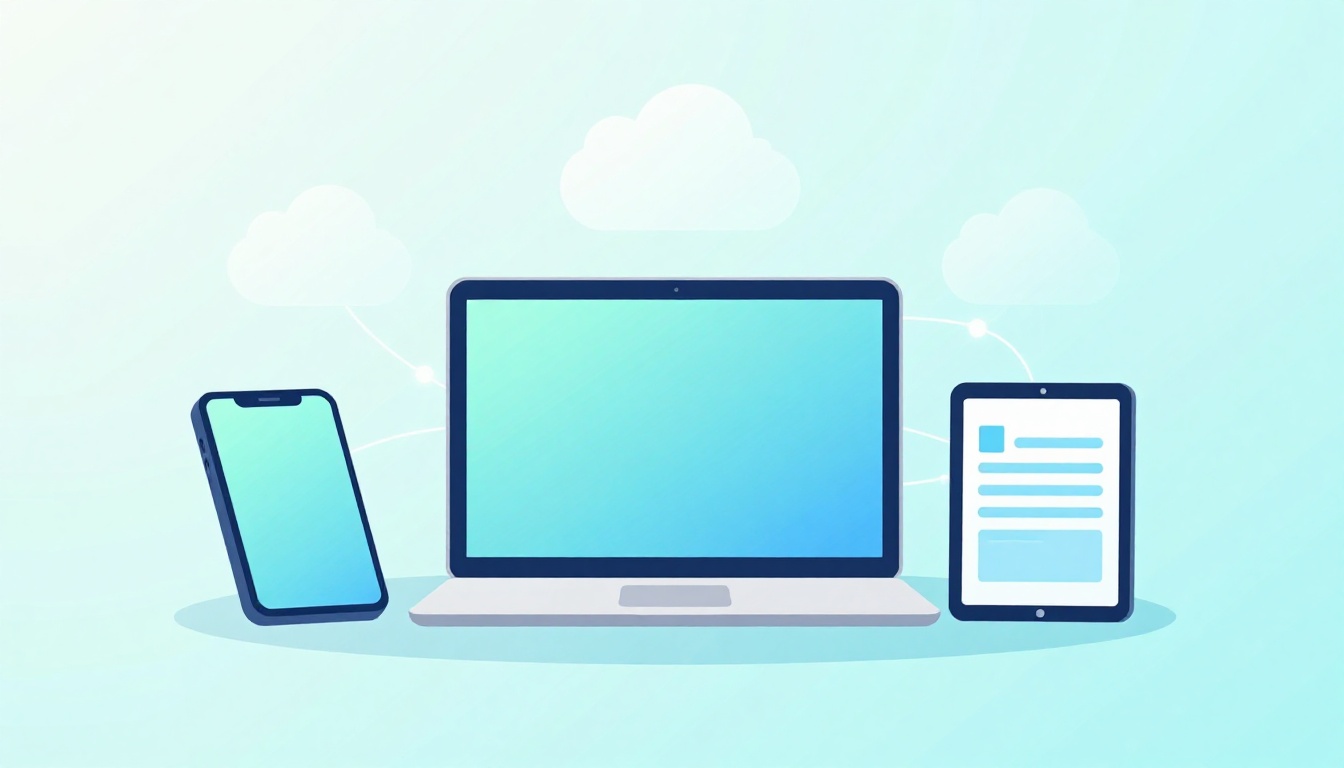
You edit a document on your laptop, then you grab your phone to finish the same work. But the phone shows an older version. Annoying, right?
That’s what file syncing is meant to prevent. It keeps your files up to date on multiple devices, so changes you make on one device appear on the others. You also avoid the usual chaos, like emailing files to yourself.
This guide covers the basics of syncing files across devices in plain English. First, you’ll see how syncing works (and why conflicts happen). Then you’ll compare cloud syncing and peer-to-peer syncing, with beginner-friendly tool picks for March 2026. After that, you’ll get setup steps, quick fixes, and habits that keep syncing calm instead of messy.
How File Syncing Works Behind the Scenes
File syncing is simpler than it sounds. Most tools run the same basic routine: they watch a folder, detect changes, and copy those changes to your other devices.
Think of it like a team passing updated notes. Each person has a notebook page. When one person edits the page, the team swaps in the newest version. Then everyone’s notebook matches.
Here’s the key idea. Sync apps track two “states”:
- The global state: what the folder is supposed to look like overall (the latest set of files).
- Each device state: what your laptop, phone, or tablet currently has.
When you edit a file, the sync tool notices it. Then it compares your device state to the global state. If something is new, changed, or deleted, it copies the update to the other devices.
Tools also do rescans. That means they check again and again for changes, even if you didn’t create them right there. For example, a file might land in your folder from another app. The sync tool picks it up on the next scan.
One-way sync vs two-way sync
Most beginners run into a choice: one-way or two-way syncing.
- One-way sync usually means changes go from one “main” device to others. This is common for backups. It can also help when you do not want edits to bounce back and create conflicts.
- Two-way sync means changes can happen on multiple devices. This is the common setup for personal work folders and shared projects.
Two-way sync is more convenient. However, it can create conflicts if you edit the same file on two devices before sync catches up.
A conflict is not “broken syncing.” It’s the system trying to avoid overwriting work.
A simple visual in your head
Picture a shared folder “in the middle.” Each device has a copy of that folder on its side. Sync works by comparing each copy to the middle version. Then it sends updates until all copies match.
In short, file syncing is mostly: detect changes, compare states, copy updates, repeat.
Best Tools for Syncing Files: Cloud vs Peer-to-Peer Options
In March 2026, most people start with cloud syncing. It’s easy, and it just works across phones, laptops, and tablets. Still, privacy-minded users often choose peer-to-peer (P2P) syncing.
Real-world popularity in the US still favors cloud tools. Google Drive, Dropbox, Microsoft OneDrive, and iCloud lead for everyday use. Meanwhile, Syncthing keeps gaining fans for P2P syncing because it’s free and private.
Cloud syncing (server in the middle)
With cloud syncing, your files live in a service’s online storage. Your devices connect to that storage, then keep folders updated.
Here’s the tradeoff in plain terms:
- It’s easy because you rely on the service for the “middle.”
- It can feel limiting because you need internet for fast updates.
- Privacy can vary depending on the platform’s security model and encryption options.
Peer-to-peer syncing (devices talk directly)
With P2P syncing, devices share files directly with each other. There may still be help for “finding” devices, but there’s no central storage that holds all versions.
This approach can feel more private. It can also work well in places with spotty internet, especially on a home Wi-Fi network.
Cloud vs P2P, side by side
A quick way to choose is to match the setup style to your life.
| Option | Pros | Cons | Best For |
|---|---|---|---|
| Cloud syncing | Easy setup, access anywhere, good apps | Needs internet, storage limits, provider sees metadata | Everyday work, families, teams |
| Peer-to-peer (P2P) | More private feel, works offline on LAN, no central storage | Setup takes more effort, fewer “shared editing” features | Privacy focus, big files, home networks |
Bottom line: if you want simple, pick cloud. If you want more control, consider P2P.
Cloud Storage Services That Make Syncing a Breeze
Most cloud tools do the same thing: they mirror your chosen folder. If you add or edit a file, the app syncs the change automatically.
Some services also support “offline” behavior. In practice, “offline” usually means the app queues changes until it can sync again. For Google Drive, Google also distinguishes between mirroring and other offline approaches in its desktop guide. You can read about that in Google Drive mirroring vs streaming.
Popular cloud options in the US include:
- Google Drive: Great if you live in Google Docs or need cross-device sync for work files.
- iCloud: Strong for Apple users, especially when you’re already using iPhone and Mac together.
- OneDrive: A natural choice for Windows users and Microsoft 365 habits.
- Dropbox: Often praised for smart sync behavior and file access that feels fast.
Also, you generally get version history. That’s important because it helps you recover if you accidentally change the wrong file.
One warning for beginners: free storage is limited. Also, most mainstream services are not “end-to-end encrypted” by default. That means your provider may be able to access file contents under certain conditions. If privacy is a top concern, you’ll want to review the security model before trusting sensitive documents.
Peer-to-Peer Syncing for Privacy Lovers
If you’re tired of putting your files on someone else’s servers, P2P tools can feel refreshing. Syncthing is the most common recommendation for beginners who want privacy without paying monthly fees.
Syncthing is free and works across Windows, macOS, Linux, and Android. It syncs folders directly between devices. In many setups, it’s also encrypted in transit.
The biggest benefit is how it changes your mental model. You’re not relying on a cloud folder as the single source of truth. Instead, you connect devices you control.
Another bonus: local network syncing. On the same Wi-Fi, updates can be quick. That means edits can spread fast even if internet is slow.
Still, be ready for setup work. P2P tools use device IDs. You must pair devices thoughtfully. Also, sharing and permissions can be less “one click” than cloud folders.
If your goal is a private home sync that you control, Syncthing is a strong starting point.
Step-by-Step Guides to Set Up File Syncing Today
The easiest way to avoid headaches is to start small. Pick one folder. Put just 2 to 10 test files inside it. Then check that edits show up on the other device.
If you do that, you’ll learn how your chosen tool behaves before your real documents are involved.
Quick Cloud Sync Setup with Dropbox or OneDrive
Cloud setups are usually quick because the service handles pairing for you. Here’s a beginner path that works well for Dropbox and OneDrive.
- Install the app on your laptop and phone (or sign in via the web).
- Sign in with the same account on every device.
- Create a sync folder (for example, “Work Sync”).
- Drag files into the folder on one device.
- Wait for sync, then open the same folder on the other device.
Dropbox’s help docs explain that once you sync files, they stay up to date everywhere you use Dropbox. See how Dropbox file sync works.
For OneDrive, Microsoft also documents how to sync your computer’s files and folders. Use sync your computer’s files with OneDrive if you want the official steps.
Common beginner pitfall: forgetting to sign in on every device. If one device uses a different account, you’ll sync into the wrong place.
Also, remember storage limits. If you hit the limit, sync can pause. If that happens, check storage before you start moving files around.
Installing and Configuring Syncthing for P2P Sync
Syncthing setup is different. You pair devices using IDs, then share folders to sync.
Here’s a clear starter flow. Plan to do this on one device at a time.
- Install Syncthing on each device (Windows, macOS, Linux, or Android).
- Open the Syncthing web interface (it usually runs on a local port).
- Find the device ID on Device A.
- Share that device ID with Device B.
- Add the folder you want to sync on Device A.
- Authorize Device B to access that folder (usually by linking the device to the folder).
- Set a sync password (if you choose the secure option) and confirm the connection.
If you’re on Linux, LinuxForDevices has a step-by-step guide you can follow for setup and configuration. Check Syncthing install and setup on Linux.
One more practical tip: during the first test, pick a folder with small files. Then edit a file on both devices. You’re learning how conflicts show up.
Also, keep an eye on firewall prompts. Many devices block incoming connections by default. If pairing fails, firewall rules are often the reason.
Fixing Common Syncing Problems Before They Ruin Your Day
Even when you do everything right, sync can wobble. The good news is that most issues have predictable causes.
File conflicts (two edits at once)
A conflict happens when you edit the same file on more than one device before sync can reconcile changes.
What to do:
- Use version history if your tool keeps it.
- Keep only one “active editor” for important files when possible.
- If conflicts keep happening, switch to one-way sync for that folder.
Example: you edited a budget spreadsheet on your laptop, then changed it on your phone later. Both edits compete. Version history lets you pick the correct version.
No internet or delayed updates
Cloud sync usually needs internet to upload changes. If your phone goes offline, edits may queue until you reconnect.
For P2P syncing, internet loss can still hurt remote syncing. However, LAN sync on home Wi-Fi can keep working.
Quick fixes:
- Check your connection (Wi-Fi vs cellular).
- Pause and resume syncing if the app supports it.
- Wait a few minutes after reconnecting.
Slow sync (big files, lots of files, or weak signal)
Sync slows down when you add large video files or thousands of small documents. Mobile networks can make it worse.
Fixes:
- Start with small batches, then sync big folders later.
- Use selective sync if your tool supports it.
- If you can, connect on Wi-Fi.
Out of space (the silent stop sign)
If a device or account runs out of storage, sync may stop mid-stream. Always check storage before assuming something is “broken.”
Devices not linking (P2P pairing issues)
With Syncthing, pairing problems often come from:
- wrong device IDs,
- missing folder authorization,
- firewall blocking.
If the connection won’t establish, re-check IDs and make sure both devices are allowed to reach Syncthing.
Smart Tips to Keep Your File Syncing Running Smoothly
Sync works best when you treat it like a system, not a magic button.
Here are habits that reduce trouble:
- Start small, then expand. Test with a small folder first.
- Use strong passwords and turn on two-factor authentication for cloud accounts.
- Pick the right sync scope. If you do not need everything, sync only what you need.
- Back up first. Sync helps with versioning, but it’s not the same as a true backup plan.
- Review version history now and then. You’ll feel safer when you need it.
- Expect rescans. If files change outside the sync folder, they might take a moment to be picked up.
- Keep app versions current. Tool updates often fix stability issues.
One more practical idea: treat synced folders as “work folders,” not “messy folders.” If you dump random downloads there, you’ll get messy sync.
If something goes wrong, don’t panic. Most sync problems are fixable through settings, permissions, or storage checks.
Conclusion
File syncing is basically a system that keeps the same folder up to date across your devices. Once you understand the basics, the rest gets easier.
Cloud syncing is the simplest path for most people, with tools like Dropbox, Google Drive, OneDrive, and iCloud staying popular in the US. If you want more control and a private feel, Syncthing offers a solid P2P setup, especially for home Wi-Fi syncing.
Start with one small folder. Watch how updates and conflicts behave. Then choose the method that matches your priorities in March 2026.
What device pair do you want to sync first, phone to laptop, or tablet to computer? Share your setup and preferred tool, and keep questions coming.