You know that sinking feeling when you need a key report and your cloud drive takes forever to find it. You click through folders, search again, then realize you saved the file under the wrong name months ago.
That kind of mess costs time, especially as your cloud storage grows. By 2026, the cloud storage market is projected to hit roughly $150 billion to $198 billion, and more companies keep moving data into the cloud (about 60% of business data is already there). Since many people use more than one provider (54% rely on three or more), your system has to work across tools like Google Drive, Dropbox, OneDrive, iCloud, and Box.
In the sections ahead, you’ll set up smart folder rules, use naming that stays readable, separate personal and work files, add simple automation, and plan for multi-cloud backups so nothing gets lost as you scale.
Build a Folder Structure That Grows With You
A good cloud folder setup should feel like a filing cabinet, not a maze. When your structure matches how you think, you find things faster, and you stop creating duplicates. In 2026, more people rely on AI search, but simple folders still matter because they give AI cleaner signals and help teams agree on what goes where. For deeper ideas, see Google Drive folder structure best practices for a practical baseline.
Top-Level Folders Every User Needs
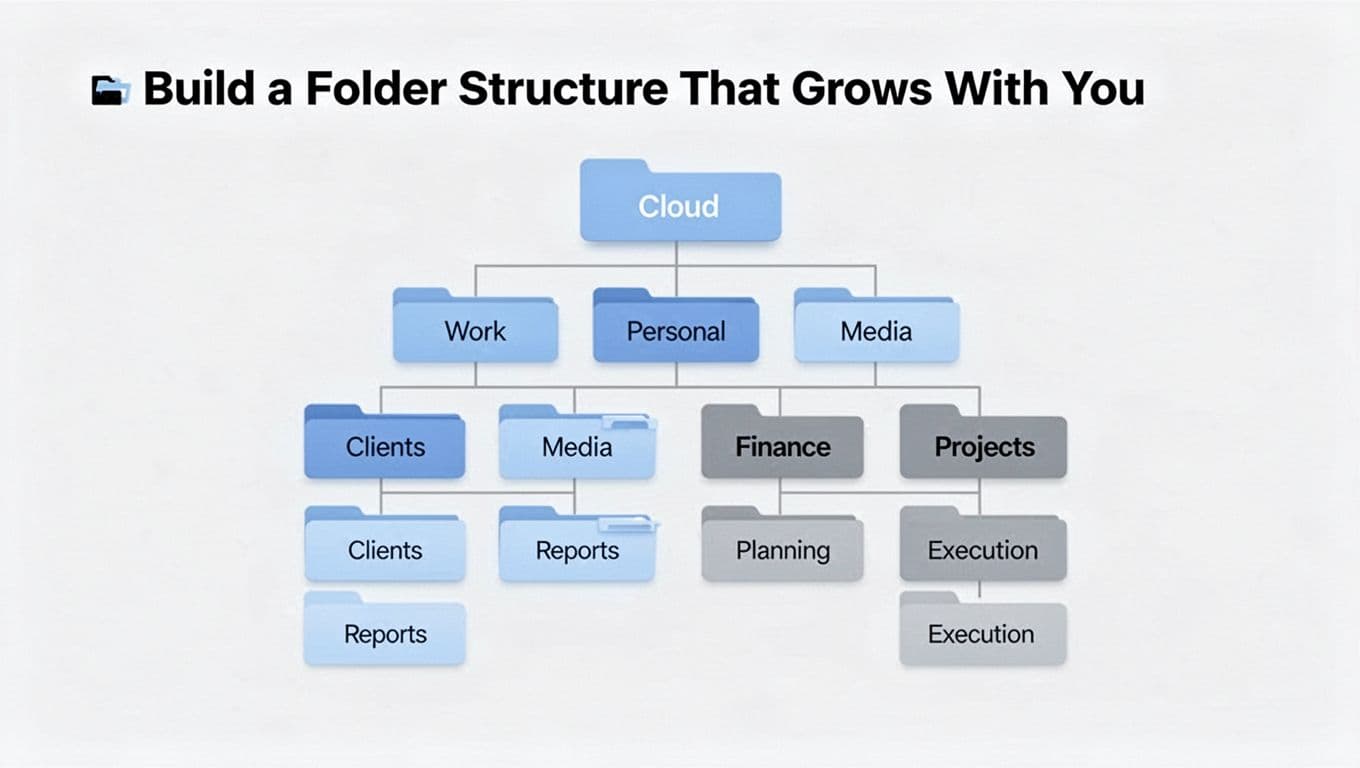
Start with life areas. This keeps decisions easy, and it reduces “where do I put this?” moments. Keep it under 10 top-level folders, ideally 5 to 7. If you grow later, you add folders inside them.
Here’s a solid set that works for most people:
- Work: jobs, clients, internal docs, and shared team files. It keeps permissions clear.
- Personal: personal documents and non-work life tasks.
- Media: photos, videos, and scans, so they do not mix with paperwork.
- Finance: taxes, bank docs, invoices, and yearly statements. Searching stays focused.
- Projects: anything active, temporary, or cross-over work you manage.
- Admin (optional): warranties, subscriptions, and ID scans.
For a quick “before and after” feel, compare this:
Before: Downloads, Misc, Old stuff, New folder (2), and scattered receipts in random places.
After: Finance/Taxes/2025/, Work/Clients/Acme/, and Projects/Website Refresh/.
That change speeds retrieval because you stop scanning unrelated categories. Also, teams collaborate better when everyone expects the same top-level home for shared work.
Project Subfolders: A Ready-to-Use Template
Projects need their own pattern. Otherwise, you end up with version chaos like Final_FINAL2.docx and proposal-REALLY-final.pdf.
Use this reusable template:
Main project folder
- Planning
- Execution
- Review
- Archive
Example for a freelancer:
Projects/Client Landing Page - Acme/Planning/Projects/Client Landing Page - Acme/Execution/Projects/Client Landing Page - Acme/Review/Projects/Client Landing Page - Acme/Archive/
Example for a team project:
Projects/Internal Training - Q2/Planning/Projects/Internal Training - Q2/Execution/Projects/Internal Training - Q2/Review/Projects/Internal Training - Q2/Archive/
Why it works is simple. Each stage has one purpose, so you move files as the work changes. Version history also becomes easier because related drafts live together.
A quick diagram idea (in your notes) looks like this:
Projects → (Project Name) → (Planning → Execution → Review → Archive)
In short, you stop treating project folders like “temporary storage” and start treating them like a timeline.
Steer Clear of Nesting Nightmares
Shallow folders keep searches quick. If you go too deep, you create “click fatigue,” and you start skipping folders entirely.
A good rule: avoid more than 3 levels deep. Beyond that, file retrieval gets slower because you must remember too many steps.
Instead, flatten your structure:
- Combine similar folders when they get small (fewer than 10 files each).
- Use search-friendly names like
Contracts-2025orInvoice-2025-03. - Keep folder names consistent, so
ClientNamealways follows the same format.
Also, use fewer “cute” folder names. Clear names work better with both human memory and AI tools. If you want an extra reference on structuring for retrieval, read organizing files for quick retrieval.
Name Files So You Find Them Instantly
When you name a file well, you stop guessing. You also make search work for you instead of against you. Think of your file name like a label on a storage bin. If the label tells you what’s inside, you grab it in seconds.
Use a Date_Project_Type_Version Pattern That Stays Searchable
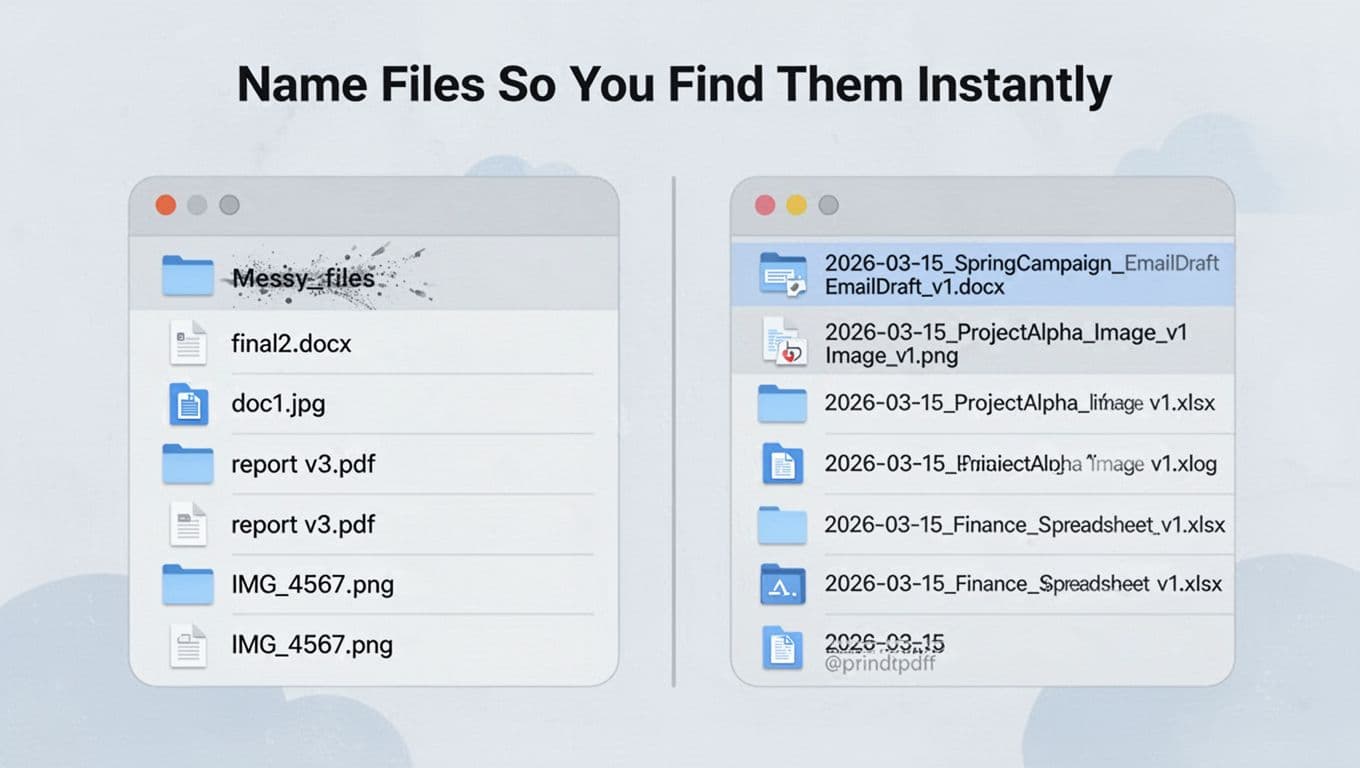
A simple naming system helps you sort and find files in any cloud drive. Use this pattern:
YYYY-MM-DD_ProjectCode_Type_v#
For example:
2026-03-15_SpringCampaign_EmailDraft_v1.docx2026-03-15_ProjectAlpha_Image_v1.png2026-03-15_Finance_Spreadsheet_v1.xlsx
That structure gives you three wins at once. First, YYYY-MM-DD sorts automatically by date. Next, ProjectCode groups related files together. Finally, v# keeps versions from turning into a guessing game.
Keep names consistent across documents, images, and spreadsheets. In other words, don’t switch styles mid-stream. If you do, your team will start copying old mistakes.
If you want a rule set to sanity-check your format, use file naming conventions best practices as a reference while you lock in your own pattern.
Keep Names Clean (and Safe) So You Never Regret Them
Good file names are short, clear, and easy to type. Also, treat names like they might show up in previews, share links, or exports.
Use these guardrails:
- No sensitive details like client full names, passwords, or account numbers. Use safe codes like
ProjectAlphaorClientA. - No spaces or odd symbols. Use
_or-instead (example:meeting-notes). - Lowercase or consistent casing. Pick one and stick to it.
- Avoid vague terms like
final,backup, ordoc1. They tell you nothing about the file’s purpose.
Also, decide what Type means for your workflow. For instance, EmailDraft, Invoice, ReceiptScan, Contract, or BudgetSheet. When you do, you can scan file lists like a movie timeline, not a pile of guesswork.
Sort Active Work from Old Stuff to Stay Focused
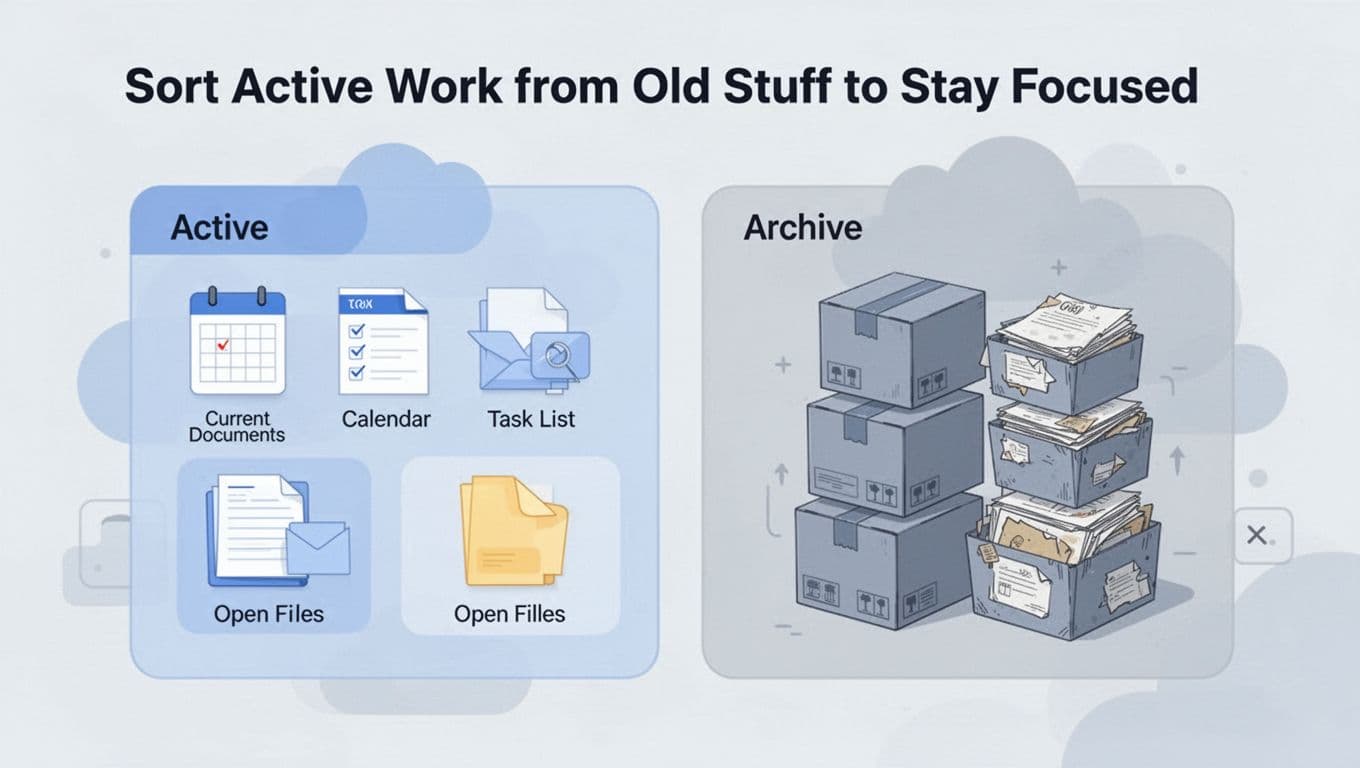
A cluttered cloud drive feels like keeping every coat you ever owned in one closet. You can, but it slows you down every time you need the right one. When you split Active work from Archive work, your daily view stays calm, and your search results get sharper.
Instead of thinking “folders for everything,” think “folders for your next move.” In 2026 schedules that already feel packed, this small change protects your focus. You spend less time hunting, and you start the task sooner because your files sit in the right place from day one.
Why Active vs. Archive declutters your daily view
Use Active for current tasks and anything you touch weekly. Use Archive for projects that finished, decisions that changed, or drafts you no longer update.
This separation helps because your cloud storage behaves like a desk, not a junk drawer:
- Active becomes your “in motion” space (planning, drafts, ongoing edits).
- Archive becomes your “reference shelf” (finals, submitted files, past versions you might need later).
If you also back up files, remember the key difference: backup is about recovery, while archive is about keeping old work organized and findable. For a clear breakdown, see Backup vs. Archive basics from Dropbox.
How to move files into Archive without creating new mess
When a project ends, move it in one focused pass. Then stop touching it. That final step matters more than the moves themselves.
Use this quick routine:
- Open the project’s Active folder.
- Confirm the latest, correct version for each item (contracts, final docs, images).
- Move finished files to Archive.
- Keep only true “active” items in Active (items you will update soon).
If you have a habit of dragging random files around, you’ll also benefit from quick online storage cleanup tips from PCMag.
One practical tip: name your project folder by status. For example, Projects/ClientA (Active) and Projects/ClientA (Archive) keeps everyone aligned on where the “current work” lives.
Let Automation Handle the Heavy Lifting
Manual file cleanup feels like sweeping your floor after it gets covered again. Automation flips that pattern. Instead of relying on memory, your cloud storage can move older files to cheaper tiers, keep rarely used data colder, and reduce “junk pile” growth over time.
In 2026, many providers use lifecycle policies that run in the background based on age or last access. That matters because your real usage pattern is not the same every day. Let the system watch behavior, then act on a schedule.
Here’s the simple mindset: treat your storage like clothing. Your favorite hoodie stays easy to grab. Winter boots go in the back closet. Then the system handles the swap for you.
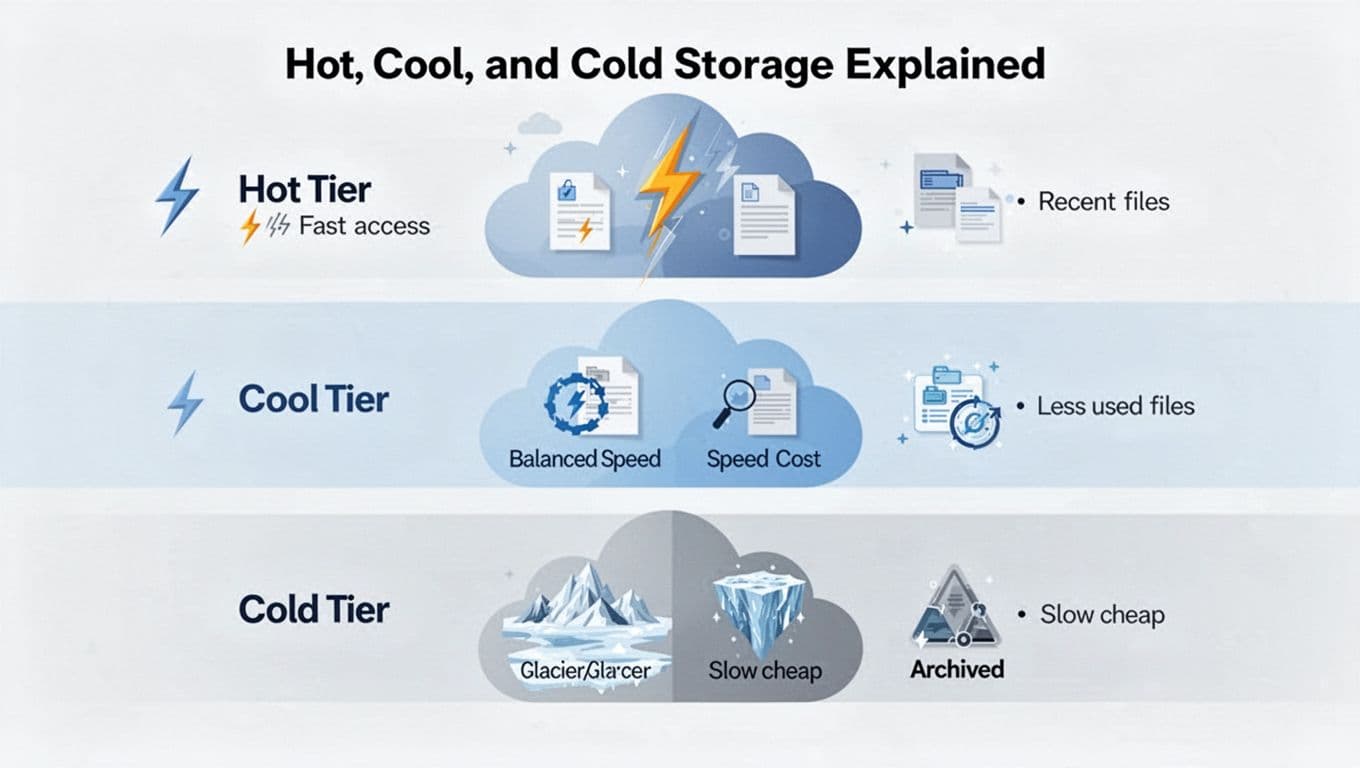
Hot, Cool, and Cold Storage Explained
Think of tiers as heat levels for your files, not as “better” or “worse.” Each tier balances speed against cost.
- Hot storage is for files you touch often. It stays fast and ready.
- Cool storage fits items you use sometimes. Access is slower, but you pay less.
- Cold storage is for data you rarely open. It saves cost, and it may take longer to retrieve.
Now, how do you assign files automatically? You base it on signals your provider can track.
Most lifecycle setups use one of these triggers:
- Last accessed date (great for user-driven behavior)
- File age (great when access tracking varies)
- Folder prefix (handy when you already organize by Active vs Archive)
In Google Drive (via Google Cloud Storage lifecycle rules), you can move data into cheaper classes based on age, then delete after a set period. Google documents object lifecycle management and explains the core options and configuration structure in plain terms: Google Cloud lifecycle management documentation.
In OneDrive for Business, tiering works through Azure Blob lifecycle policies. You can move blobs to Cool or Archive after a window with no access, and then return them to Hot if someone opens them again: Azure Blob lifecycle concepts via OneDrive behavior.
The key is to pick rules that match your actual workflow. If you name projects by stage (like Projects/.../Archive), you can push everything in that area down a tier automatically.
Example tiering logic you can adapt:
- Keep files “hot” while they’re actively worked.
- Move to “cool” after a quiet period (like 30 days).
- Drop to “cold” after a longer quiet period (like 90 to 365 days).
- Add deletion only when you truly want it.
Watch retrieval behavior. If you move to cold too early, teams may wait when they search “old but needed” files.
If you do this right, you stop thinking about storage classes. Your drive does the housekeeping for you.
Run Easy Monthly Cleanups
Even with lifecycle policies, you still need basic hygiene. Think of it like kitchen prep. Automation handles the fridge. Monthly cleanups handle the leftovers.
A good cleanup cycle looks for three things: usage, orphans, and trash.
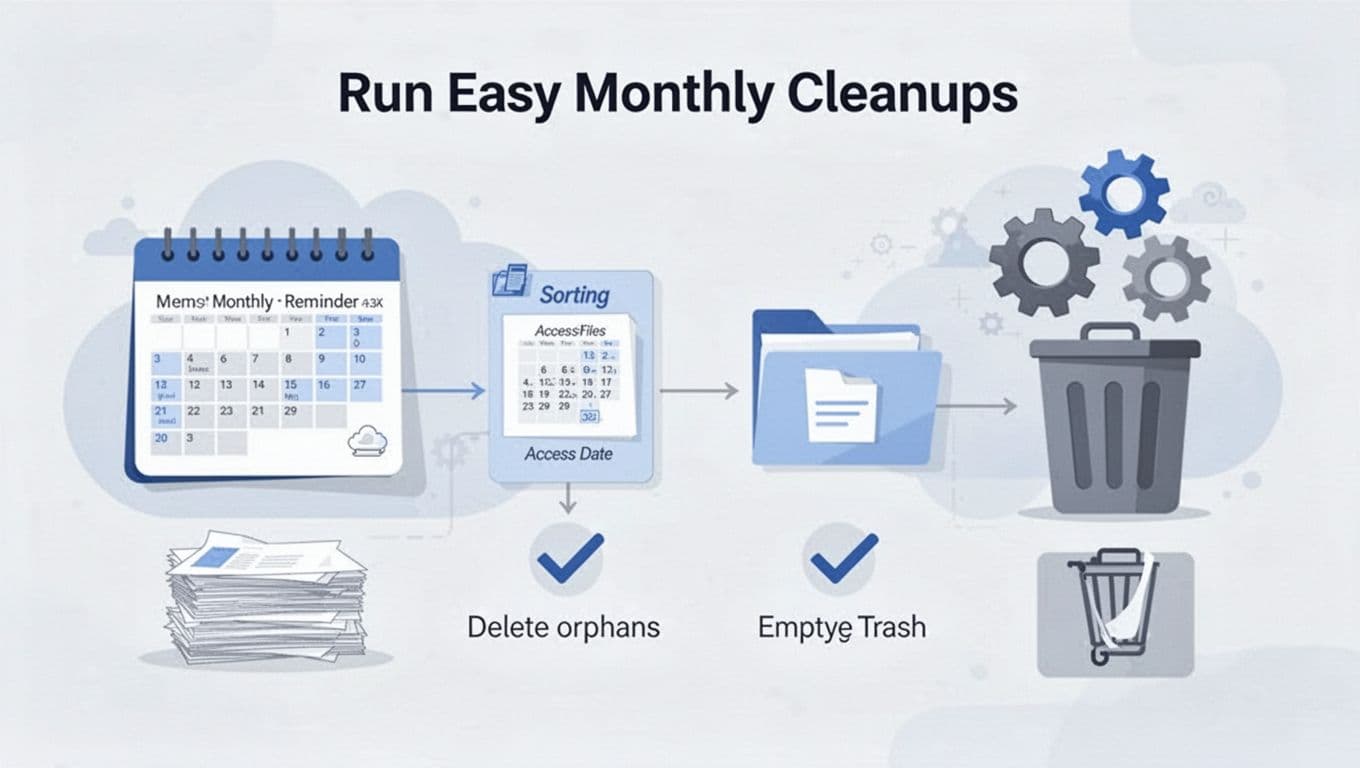
Here’s a simple audit flow you can run every month:
- Sort by last accessed
Pull up a view that shows which files people touched most recently. Then flag anything that nobody opens. - Delete orphans
Orphans happen when you download, re-upload, or create versions. They don’t match your folder structure anymore, so they linger. - Empty trash (or confirm retention is correct)
Trash is not a forever home. It’s a buffer. Still, it can grow, and it can confuse storage limits.
To make this feel automatic, add a recurring reminder on your calendar. Then keep the checklist tight. You want a quick pass, not a weekend project.
Use time-based rules that match how you work:
- First Monday of the month for the audit
- Last Friday if you prefer end-of-month housework
- After finance close if most junk comes from reporting cycles
For providers, the “trash step” often differs by plan. Many services keep deleted items recoverable for a set time, commonly around 30 days for personal accounts. The safest move is to check your account retention settings so you know when files truly disappear.
Also, consider auto-handling “temps,” like:
- Old exports from editing tools
- Duplicate images from scans
- Installer files people accidentally saved into Drive
If your cloud tool supports it, you can combine folder rules with automation. For example, if you keep downloads or scan imports in a dedicated folder, you can apply a lifecycle rule there. Google’s lifecycle feature supports automation patterns like moving objects to different storage classes and deleting older items. If you want an example path for setting lifecycle rules, these Google Cloud guides show how lifecycle configurations work at the object level: Object Lifecycle Management in Google Cloud.
For Dropbox and OneDrive, lifecycle tiering may be handled differently by plan and admin settings. Dropbox’s storage research and architecture notes often focus on how it stores older files in more efficient ways, especially in large-scale systems: Dropbox cold storage tier background. In practice, your monthly cleanup still matters because your personal organization and shared team habits create local clutter.
A clean setup beats big cleanup. So start small:
- Pick one folder that always accumulates junk.
- Run the monthly audit only there at first.
- Expand once your rules and naming habits stick.
If you keep your folder structure consistent, audits get easier each month.
Tame Multiple Clouds, Backups, and Sharing
Once you split files across Google Drive, Dropbox, and other services, organization can fall apart fast. The fix is simple: use the same rules everywhere. Then your folders, versions, and access controls behave like one system, not three separate ones.
Also, remember that most people do not “clean up” multi-cloud storage. Instead, they build a structure that prevents chaos from starting.
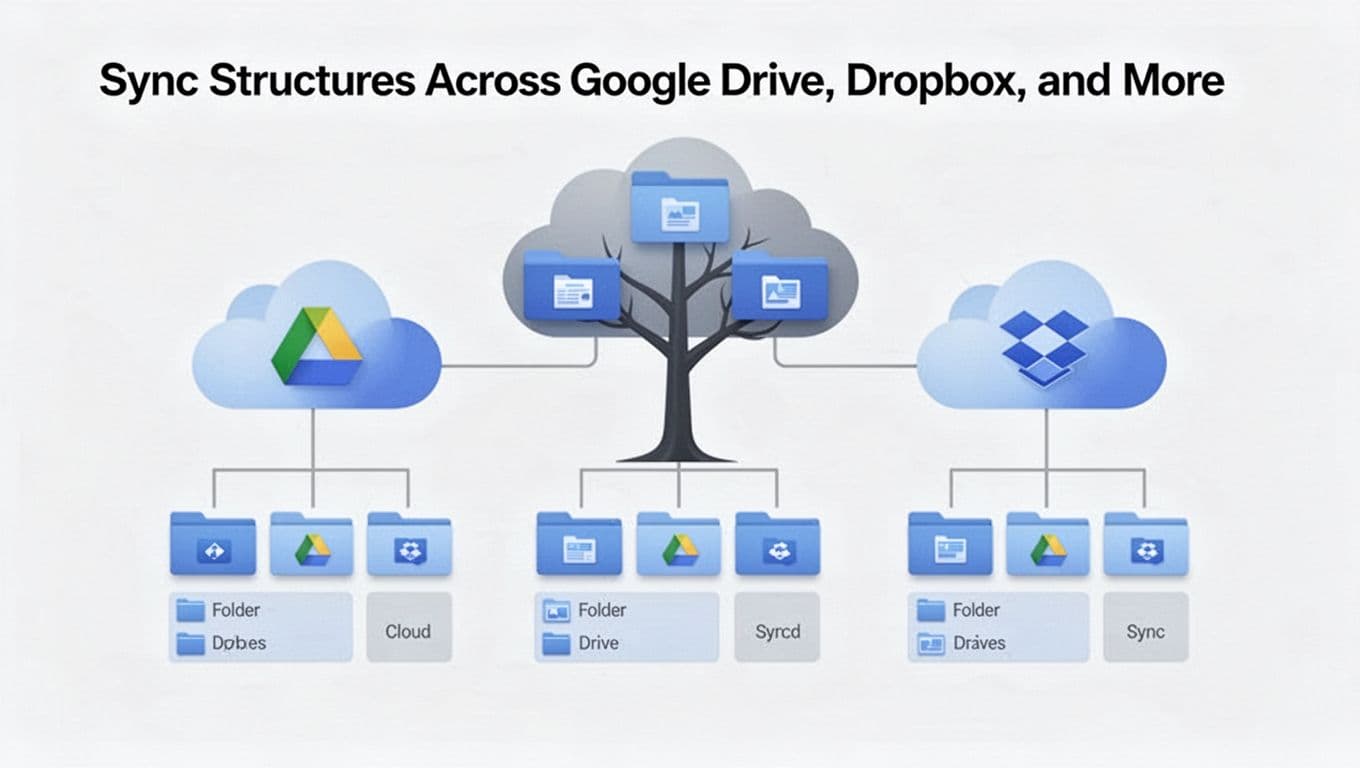
Sync Structures Across Google Drive, Dropbox, and More
Start with a unified master plan. Before you copy anything, you decide what the top-level folders mean, what naming rules you use, and how you handle project stages. Then you apply the same plan to each cloud, even if the UI feels different.
For multi-cloud syncing, aim for structure first, files second. Tools and workflows change over time, but your standards should stay steady.
Here’s a practical way to set this up:
- Audit your current mess
List your existing folders, then spot duplicates likeFinal,Final2, andMisc. This helps you choose what to keep and what to retire. - Pick one naming format
Use the same pattern across Drive and Dropbox. Consistency matters more than perfection. - Define a folder map
Create the same folder paths in each service. Example:Work/Clients/Projects/<Project Name>/PlanningProjects/<Project Name>/ExecutionProjects/<Project Name>/Archive
- Merge accounts where you can
If you have multiple accounts in the same provider, combine them when possible. Fewer accounts means fewer permission mistakes. - Use sync tools that respect folder structure
Since cloud providers do not sync folders natively, you may need a tool. For example, how to sync Google Drive with Dropbox using rclone tools can help keep two providers aligned.
A key gotcha: different clouds treat “folders” and “files” slightly differently. So you should test with a small sample first. Pick one project folder and run the sync long enough to confirm version behavior.
Think of your folder structure like train tracks. Sync tools move the cars, but the track layout decides where everything can go.
Migrate planning without breaking access
When you move from one cloud to another, do it in a controlled order. First, move files into the new folder map. Next, confirm names and versions. After that, apply sharing rules.
This prevents the common failure mode: copying data but leaving permissions scattered. As a result, you get “missing files” even when the files exist.
If your organization uses shared drives or team spaces, borrow that idea. Create project-focused shared areas, then control membership through group-based access (more on that next).
To keep it reliable across platforms, document your structure in one short place. A simple “Folder Map” doc beats a long wiki. Team members can copy the rules instead of improvising.
Lock in Backups with the 3-2-1 Rule
Folders and sync reduce friction, but they do not prevent loss. Accidental deletes, ransomware, drive corruption, or a bad sync run can still wipe your working copies.
That’s where the 3-2-1 backup rule saves you. It gives you a recovery path even when something goes wrong in the cloud.
The rule is easy to remember:
- 3 copies of your data
- 2 different media types (for example, cloud + external drive)
- 1 offsite copy (stored somewhere your main location cannot reach)
Most people only have “one copy in the cloud” plus “another copy on a laptop.” That setup fails when the cloud account gets hit too.
So instead, build backups like insurance. You do not buy it to feel good. You buy it so you can recover fast.
Set up 3-2-1 across multiple clouds
Because your article already assumes multiple providers, you can still follow 3-2-1 without making it complicated.
Here’s a common setup for US-based personal and small business users:
- Copy 1: Google Drive (primary work)
- Copy 2: Dropbox (second cloud)
- Copy 3: An external hard drive that syncs monthly
- Offsite: Dropbox or another cloud region, plus the external drive kept away from your main desk
If you want a clear, example-driven walkthrough, see 3-2-1 backup rule guidance and how to implement it.
Now, let’s make it real. Your backup process should include these steps:
- Back up versions, not just current files
If your cloud provider keeps version history, great. Still, exports into a backup location protect you from “oops” changes. - Back up in a way that avoids circular sync
If you sync Drive to Dropbox and then back them both up “automatically,” you might end up backing up the mistake. - Run backups on a schedule
Many people run backups weekly, then tighten to daily for critical folders like taxes and legal docs. - Test recovery once
Pick one backed-up file, restore it, and confirm it opens. If you do not test, you only guess.
Backups should be boring. If they feel risky to run, simplify the scope and test first.
Where people mess up
Two mistakes happen again and again:
- Treating sync as backup
Sync copies changes, including deletes. Backup focuses on recovery, not convenience. - Only backing up “what changed”
That can miss untracked items or files that got renamed into a new folder.
If you want to keep the effort small, start with one “must-not-lose” folder. Make it your first backup target. Then expand when recovery tests pass.
Also, if you back up a NAS or local drive, multi-cloud backups become easier with tools designed for that flow. For a practical example, how to back up NAS to multiple clouds with a 3-2-1 strategy can show how teams think about copies.
Share Files Safely Using Groups
Sharing is where good organization either pays off or collapses. When you share to individuals, you track people like socks. They get lost, replaced, and forgotten.
Groups fix that. They give you one “door” for access. Then you manage membership in one place, not file by file.
Faster than per-user, easy updates is the real win. When someone leaves a team, you remove them from a group. Access updates across all shared folders and files.
Why groups beat per-person sharing
Here’s how group-based sharing usually feels:
- Less manual work when you add or remove members
- Fewer mistakes because permissions stay consistent
- Cleaner audits since you can explain access by group purpose
Google’s own guidance for shared drives emphasizes using structure and managing membership with groups. For more context, see shared drives best practices in Google Workspace.
Even if you use multiple services, the idea stays the same. Create groups that match your folder intent, not your personal relationships.
Use groups that mirror your folder structure
Pick group names that match your organization’s file homes. Then map them to the folders those groups should access.
For example:
- Work-Admins: manage top-level shared work folders
- Project-ClientA: edit access for
Projects/ClientA/ - Project-Team-Planning: comment or edit access for planning drafts
- Finance-View: view-only access to
Finance/
Then, for each cloud, apply group permissions consistently. If you share a folder in Google Drive to Project-ClientA, share the matching Dropbox folder to the same group purpose.
Don’t make groups too small. If every project gets its own one-person group, you’ll rebuild the same admin burden you were trying to avoid. Instead, group by access role and project cluster.
Keep permissions tight with clear roles
When you grant access, choose a role that matches the job:
- Viewer for stakeholders who need reads
- Commenter for reviewers who need feedback
- Editor for people who truly update files
Also, avoid “anyone with a link can edit.” It turns your sharing system into a public hallway.
If you need platform-specific guidance for Google Drive permissions, the U-M documentation on sharing best practices is a good example of what to watch. See Google Drive sharing best practices from U-M ITS.
When groups and roles line up with your folder structure, your cloud files become easier to manage. More importantly, they become safer to share, even when team members change.
Conclusion
A well-run cloud drive starts with one clear system: folders that make sense, names that sort by date, and a clean split between Active work and archived files. When you follow that base, you spend less time hunting, and search starts working the way it should.
Next, keep it steady with automation and a short monthly check. Instead of big cleanups, focus on small rules that move older files to the right tiers and catch orphans before they pile up.
Finally, if you use more than one provider, apply the same folder map and naming pattern across Google Drive, Dropbox, and OneDrive. Consistency across services, plus the 3-2-1 backup habit, keeps your files safe even when life changes.
Try one improvement today. Pick a single folder where things drift, rename files into your date-based pattern, and move finished items into Archive. Then share what you use (Google Drive, Dropbox, OneDrive, or another service) so others can compare setups and keep building a clutter-free cloud future.