
Cloud storage is great, until you can’t find the right version, or a permission goes wrong. One shared folder mistake can cost hours, and a security scare can cost trust. In 2026, that pressure is higher because many teams run multi-cloud setups, not just one.
You need cloud file management that saves time, keeps work moving, and reduces data loss risk. Good practices make sharing safer, searching faster, and recovery less painful. They also help your team collaborate without stepping on each other.
Below are practical habits you can apply whether you use Google Drive, Dropbox, OneDrive, or AWS. You’ll learn how to choose providers, organize files for speed, lock things down, collaborate safely, back up reliably, and automate the busy work.
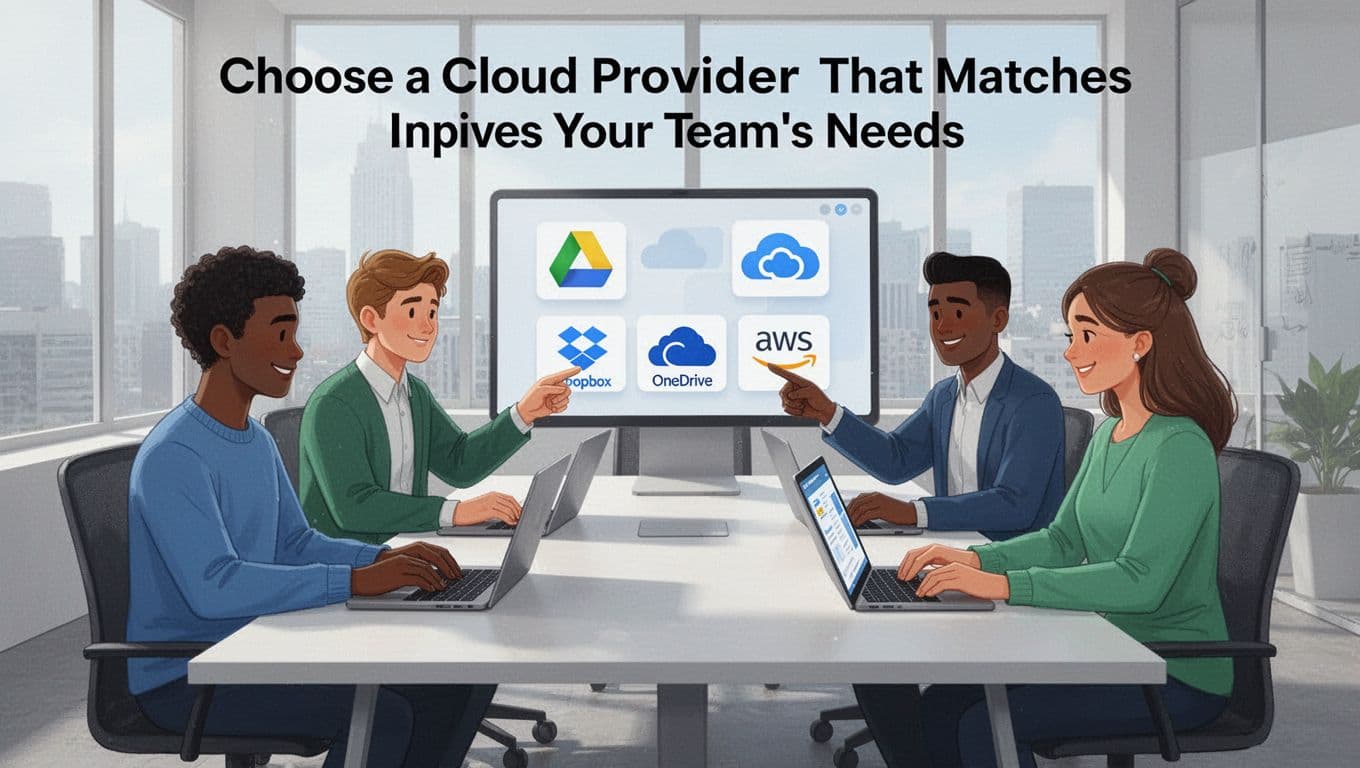
Choose a Cloud Provider That Matches Your Team’s Needs
Start with your real workflow, not a marketing promise. Ask what your team does daily: sharing documents, editing files together, or running large storage needs for apps. Then match your provider to those needs, including security requirements and compliance.
Here’s a quick way to decide. If your team mostly shares documents and updates them often, tools like Google Drive or Dropbox fit well. If you live in Microsoft Office, OneDrive often feels natural. If you need scalable object storage for larger systems, AWS can handle it.
Also, expect a multi-cloud mix in 2026. Many organizations use different providers for different jobs, since it reduces lock-in. For example, some teams store files in Google Drive but use AWS for compute or backup storage. That approach also makes it easier to swap pieces when costs or needs change.
To sanity-check options, use an expert comparison like TechRadar’s best cloud storage rankings and compare plans, sync speed, security features, and backup controls.
If you have compliance needs, be strict. For health data, that often means HIPAA-style controls and audit trails. For privacy rules, it may mean GDPR obligations. In all cases, ask for security proof and review it at least yearly.
If space allows, test providers with free trials before committing.
| Provider | Best fit | Strength | Tradeoffs |
|---|---|---|---|
| Google Drive | Frequent edits and sharing | Strong real-time collaboration | Can get messy without tight folder rules |
| Dropbox | Simple teamwork and sync | Clean sync experience | Needs discipline for version history |
| OneDrive | Microsoft-heavy orgs | Office integration | Sharing settings take time to perfect |
| AWS (storage) | Scale and system backups | Powerful object storage | More setup effort for file workflows |
The best choice is the one your team can manage correctly, not the one with the most features.
Popular Options and When to Use Multi-Cloud
Google Drive works well when teams need real-time edits, comments, and easy sharing. Dropbox often shines for simple sync and fast access. OneDrive is a strong fit when your work is mostly Word, Excel, and Teams.
AWS is different. It’s not just “a place to store files.” It’s often used for backups at scale, object storage, and enterprise systems that need growth.
Multi-cloud helps when each provider covers a gap. You may use one service for file editing and another for backup storage. You also get flexibility if one vendor changes pricing, limits, or features.
To keep multi-cloud from turning into chaos, use consistent naming rules, shared access policies, and a unified security approach. That keeps your “cloud sprawl” from spreading risk.
Organize Files So You Find Them in Seconds
If your team can’t find files fast, cloud storage becomes a second job. Organization should feel boring and repeatable, like putting tools back in the same drawer.
Start with a clear folder plan. Use names like 2026-Projects-TeamA or ClientName-YYYY. Keep the structure stable. When people change it each month, searching gets slow and mistakes become common.
Next, use version history. That’s your safety net when someone uploads the wrong draft. Also, set expectations for “final” files. If “final” doesn’t mean anything, people will keep creating more finals.
For multi-cloud setups, rely on consistent naming and folder rules across providers. Many teams also use a unified app layer for search and access. That reduces the “which cloud is it in?” problem.
Finally, scan for open folders and wrong sharing. A folder that used to be private can become public after a few clicks. Weekly checks catch issues early.
Folder Structures, Tags, and Version Control Basics
A simple hierarchy usually beats a complex system. For example:
Team/2026-Projects/ClientOrProduct/ActiveTeam/2026-Projects/ClientOrProduct/ArchiveTeam/Requests/Approvals
Add tags where your tools support them. Think of tags as searchable labels, not extra folders. If your provider supports keyword searches, use consistent tag patterns.
Version control matters most for working files. Turn on version history when possible. Then train people to update the latest file, not upload duplicates.
Also check public access settings weekly. Small permission slips can happen during onboarding or file moves.
Secure Your Cloud Files from Common Threats
Security starts with your settings, not your hope. Cloud file risks often come from misconfigurations, weak accounts, and overly broad sharing. So manage access tightly and review it often.
Encrypt data at rest and in transit. Many providers use strong standards, and you should verify AES-256 at rest where offered. Then require MFA for every account, including admins.
Use least privilege. Give people access for their job, then review roles yearly. Most breaches don’t start with “bad hacking.” They start with permissions that were never tightened.
Track access with logs. If you can’t see who accessed what, you can’t respond fast. Also set auto time-outs so sessions expire.
In 2026, many teams follow a Zero Trust model. That means verification at access time, not “trust because you’re inside the company.” For posture checks, tools like CSPM help you spot risky cloud configurations. CASB helps control app access across clouds. DLP reduces the odds of leaking sensitive data.
Because cloud services use a shared responsibility model, don’t assume the provider covers everything. Providers secure the platform. You secure your files, sharing rules, and user access.
For more guidance on multi-cloud security habits, see Cloud Security Alliance best practices for multi-cloud workloads.
Security isn’t a one-time setup. It’s a routine, like locks on doors.
Key Tools like Encryption, MFA, and Zero Trust
Turn on MFA everywhere. Then reduce admin accounts to only those who truly need them.
Use role-based access controls. For example, let editors edit, but keep most users in view-only mode for sensitive folders. Review roles yearly, and remove access promptly when someone changes teams.
Apply Zero Trust checks during access. Also watch for risky OAuth apps and third-party access. That’s where CASB-style controls help.
If you want quick context on what matters in cloud storage safety, review GlyphSignal’s guide to cloud storage security. It’s useful for comparing what providers claim and what tools can actually help.
Regular Audits and Vulnerability Scans
Run audits on a schedule. Many teams start with a twice-yearly weak-spot review, then add monthly restore tests.
Use scans that match your setup. If you run containers or serverless systems, agentless scans can cover them without risky extra installs.
Also keep “policy as code” in mind. It means your rules live as configuration, not as tribal knowledge. Then you can enforce those rules repeatedly, even as teams change.
During audits, focus on three things:
- Public or shared access that should be private
- Old roles and unused admin access
- Missing logs or disabled monitoring
Collaborate Safely While Backing Up Everything
Collaboration goes wrong when sharing rules get loose. Use role-based sharing and limit “anyone with a link” for sensitive files. When your tools support it, use end-to-end encryption for the most sensitive data.
Real-time edit features are helpful. Google Drive and OneDrive can show changes quickly. Still, train teams to review what they changed before finalizing.
Backups are your second chance. If you only rely on sync, you’ll lose data after accidental deletion or ransomware edits. Set a backup plan separate from normal file storage.
Sharing Best Practices for Teams
Create clear rules for who can share and how. For example, allow project leads to share externally, but keep most other roles internal-only.
Teach your team what “edit” means. Also teach what “view” means. Many incidents happen because people share edit access when they meant view.
When sharing externally, ask for confirmation. Then keep an audit log of that decision.
Build a Backup Routine That Never Fails
Backups should run like a simple routine, not a once-a-year scramble.
- Daily backups for critical work files.
- Weekly backups for lower-change folders.
- Set retention to 30 days as a default baseline.
- Encrypt backups separately from live storage.
- Store backups off-site or in a separate cloud account.
- Test restores monthly, at least for one folder type.
- Keep encryption keys protected and access tightly controlled.
Finally, train teams on the “when something breaks” path. If everyone knows the restore steps, you cut recovery time.
Automate Tasks to Make Management Effortless
You can reduce risk and admin time with automation. Start with the basics: MFA checks, sharing audits, and scheduled scans.
Next, automate what you can:
- Alerts when public access appears
- Auto-remediation for risky settings (where safe)
- Scheduled backup verification and restore tests
- Key rotation alerts and evidence gathering
Tools like CSPM can check config risk in near real time. CASB can flag risky app access. DLP can warn on sensitive data movement.
If you run multi-cloud, automation also helps unify security posture across providers. Many teams add simple cost checks too, using FinOps-style tracking.
Starter checklist for March 2026
- Turn on MFA for all accounts
- Confirm encryption at rest and in transit
- Scan sharing settings weekly
- Run posture checks at least monthly
- Test restores monthly
Conclusion
Cloud file management gets easier when you treat it like a system. You choose the right provider, then you organize files so people can find them fast. After that, you secure access and audit settings on a real schedule.
Then you back up in a way that survives deletion and ransomware. Finally, you automate checks so the work doesn’t rely on memory.
If your cloud setup feels inconsistent, use the checklist above today. What’s the one setting you want to fix first?