
Cloud storage is supposed to make work easier, not riskier. Yet many teams lose control because of simple cloud storage mistakes. Some security reports estimate 75% of breaches start with misconfigurations, and human errors cause 88% of issues.
Services like Google Drive, Dropbox, OneDrive, and AWS can speed up sharing, backups, and collaboration. Still, a small slip can lead to hacks, data leaks, lost files, or surprise bills. In 2026, more companies run multi-cloud setups, which means more places for mistakes to hide. At the same time, AI phishing threats have grown, with some teams reporting 73% of breach attempts tied to phishing and credential theft.
The good news is that most problems are preventable. This guide breaks down the big mistake categories: security flaws, backup gaps and migration failures, cost traps, and service-specific setup issues. Then it gives practical fixes you can apply right away.
Secure Your Files from Hackers: Fix These Common Security Blunders
Most “cloud incidents” start with the same pattern: someone made a resource too open, or they didn’t control access well. In many cases, the data looks harmless, but it’s publicly reachable. That turns a normal file into leaked customer info.
A second common pattern is identity problems. When credentials get stolen, attackers often move fast across multiple cloud accounts. This gets worse when teams use default settings, skip monitoring, or manage access across providers without a clear plan.
Here’s what to focus on first: public access, weak identity controls, and missing alerts.
Your best defense is not “hope.” It’s tight settings plus real-time monitoring.
Leaving Buckets and Shares Wide Open
One of the oldest cloud mistakes is leaving data reachable when it shouldn’t be. For AWS users, that often looks like an S3 bucket with public access enabled. For Google Drive, Dropbox, and OneDrive users, it looks like public links or shares that outlive the real need.
When buckets or links stay open, attackers do not need special skills. They just search for what’s exposed. Qualys has documented how S3 misconfigurations create major security risks when access settings drift from intended policies (see Amazon S3 bucket misconfiguration risks). In practice, this can expose downloads, logs, or customer files.
Even if you never meant to share publicly, it can happen through team workflows. A link might be “temporary,” then it becomes permanent. A bucket might be “for testing,” then it stays that way.

To avoid this mistake, do these checks:
- AWS S3: block public access, then review bucket policies. Also confirm object ACLs do not allow public reads.
- Google Drive and Dropbox: audit share links. Remove public sharing, and review “anyone with the link” settings.
- OneDrive: restrict sharing for folders, then check if external sharing is limited by policy.
- After setup or migrations: re-check permissions before you call the job “done.”
If you share Drive files often, read about why public-style sharing can be risky in real workflows, like those described in why you should not share from Google Drive.
Skipping Strong Access Controls and Monitoring
Even with no public links, attackers still try to get in. That’s why access controls and monitoring matter more than most teams expect. In multi-cloud environments, the risk grows because each provider has its own “default behaviors” and admin tools.
A common mistake is weak IAM rules (or role sprawl). For example, one service account can end up with permissions it never needs. Then a stolen credential becomes a master key.
Another mistake is monitoring only when an incident happens. If you do not get alerts for permission changes, public exposure, or unusual downloads, you’ll learn too late.
Use the “least privilege” idea. Give people and services only what they need, not everything they might want. Then track changes and alert on risky events.
Here are practical fixes you can implement fast:
- Set least-privilege IAM for each app and team. Avoid broad “Admin” roles unless required.
- Use 2FA for all human accounts. Require it for your cloud consoles too.
- Enable alerts for risky changes, like new public access, permission updates, or unusual download spikes.
- Turn on security review workflows so permission changes get checked regularly.
- Plan for AI phishing by hardening logins and reducing credential value (MFA, shorter-lived access, and tight roles).
If you manage IAM across AWS, Azure, and Google, it helps to follow a structured approach. InfoDive Labs offers a step-by-step view of cloud IAM best practices and common misconfigurations across major platforms in cloud IAM best practices across AWS, Azure, and GCP.
Don’t Lose Your Data Forever: Avoid These Backup and Migration Pitfalls
Cloud mistakes are not always about hackers. Many teams lose data during moves. They assume “it copied,” then discover missing files later. Or they restore a backup, and it doesn’t match the latest version.
Migration errors also cause downtime. That’s when teams stop trusting the storage system and start moving files manually. In that chaos, mistakes multiply.
One big warning: migration projects can fail due to gaps in planning, testing, and dependencies. Some reports put the failure risk around 62% when teams skip proper assessment and validation. Even if you’re not moving to a new platform, similar risks happen when you reconfigure workflows, storage classes, or retention rules.
The goal is simple: test every change, protect versions, and confirm backups before you need them.
Rushing Migrations Without a Plan
Lift-and-shift sounds easy. You move the files and hope the system works. But cloud storage often connects to apps, scripts, permissions, and sync tools. If you ignore those links, you can break access or lose parts of the data set.
For example, you might move a folder from Google Drive to AWS storage and keep the same links. However, app access might depend on Drive-specific permissions or shared ownership rules. After the move, the files may exist, but nobody can use them.
A safe migration starts with a small assessment. Identify where data comes from, where it goes, who owns it, and which apps depend on it. Then test the move with a limited dataset.
When planning a move between services, consider the “hidden dependencies” angle:
- Share settings and group roles
- Sync clients and scheduled tasks
- Automation scripts that read or write specific paths
- Retention, deletion rules, and version behavior
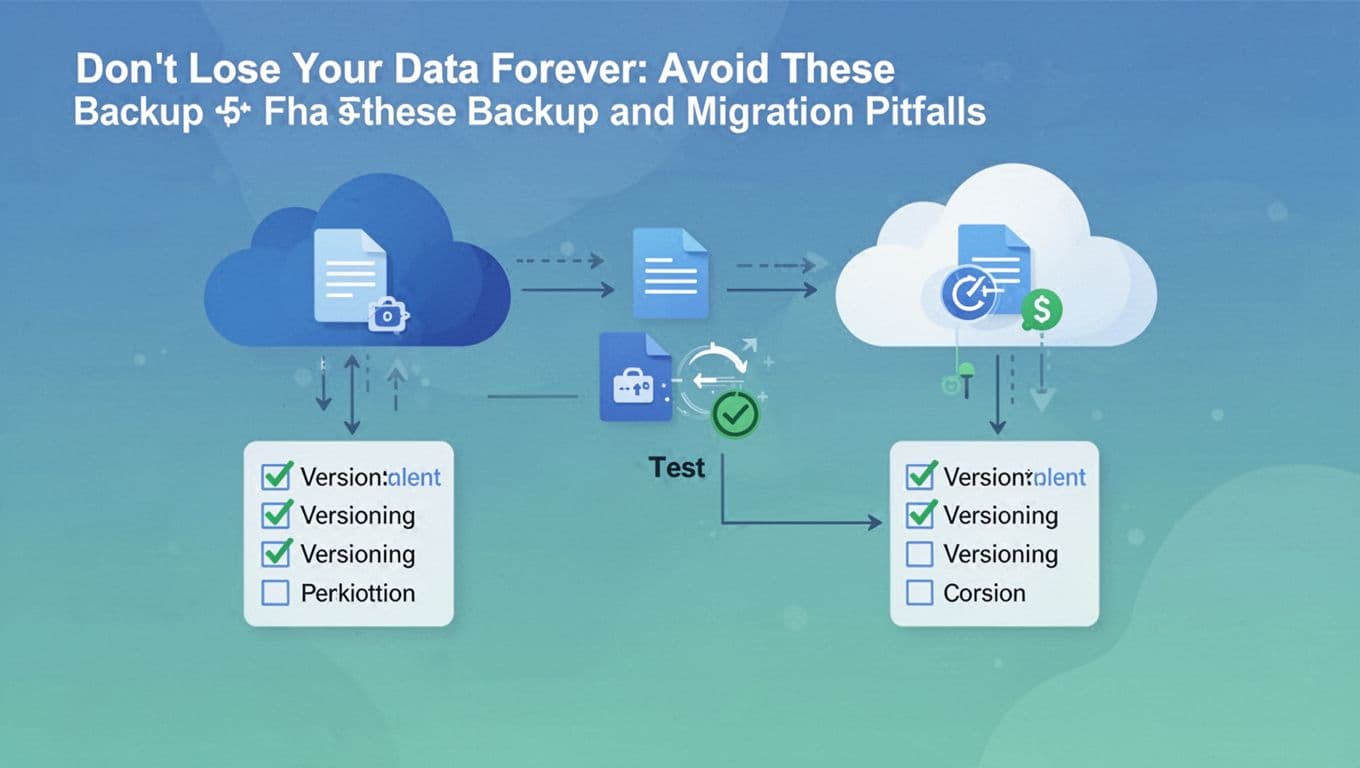
A realistic migration checklist looks like this:
- Inventory your data and note which apps use it.
- Test on a subset that matches the real permission model.
- Validate after the copy, including access and file integrity.
- Plan rollback, so you can return if something breaks.
Forgetting Reliable Backups and Tests
Backups fail more often than people admit. Sometimes the backup never ran. Other times, it ran, but it captured old versions. Then the restore gives you “a snapshot,” not the files you needed.
To avoid this, treat backup like a product you maintain:
- Use versioning so you can recover after deletes and overwrites.
- Confirm encryption is enabled, including encryption in transit and at rest.
- Run restore tests on a schedule, not only during outages.
- Separate backups from primary storage so a bad change does not wipe both.
- Keep retention rules clear, so you don’t delete recoverable data too soon.
Here’s a common real-world example. A team shares a folder during a project. Later, someone “cleans up” older files. If versioning is off, those photos and receipts might vanish for good. With versioning on, you can roll back to what existed before the cleanup.
Also watch for “backup drift.” If you change sync tools or policies later, backups may stop matching your expectations. So test after updates, too.
Slash Your Cloud Bills: Steer Clear of Cost Traps
Cloud costs can climb quietly. You may not notice until the monthly bill arrives. Then you find unused storage, extra backups, and data transfers you forgot about.
The classic mistake is underestimating storage and retention growth. Another one is “lift-and-shift” without cleanup. If you move everything as-is, you also move stale files, old versions, and test data. Then you pay again for storage class differences, access logs, and duplicates.
This is also where multi-cloud setups can surprise you. Data might move between providers for one workflow, which can add egress and API costs.
The fix starts with visibility. Then you act.
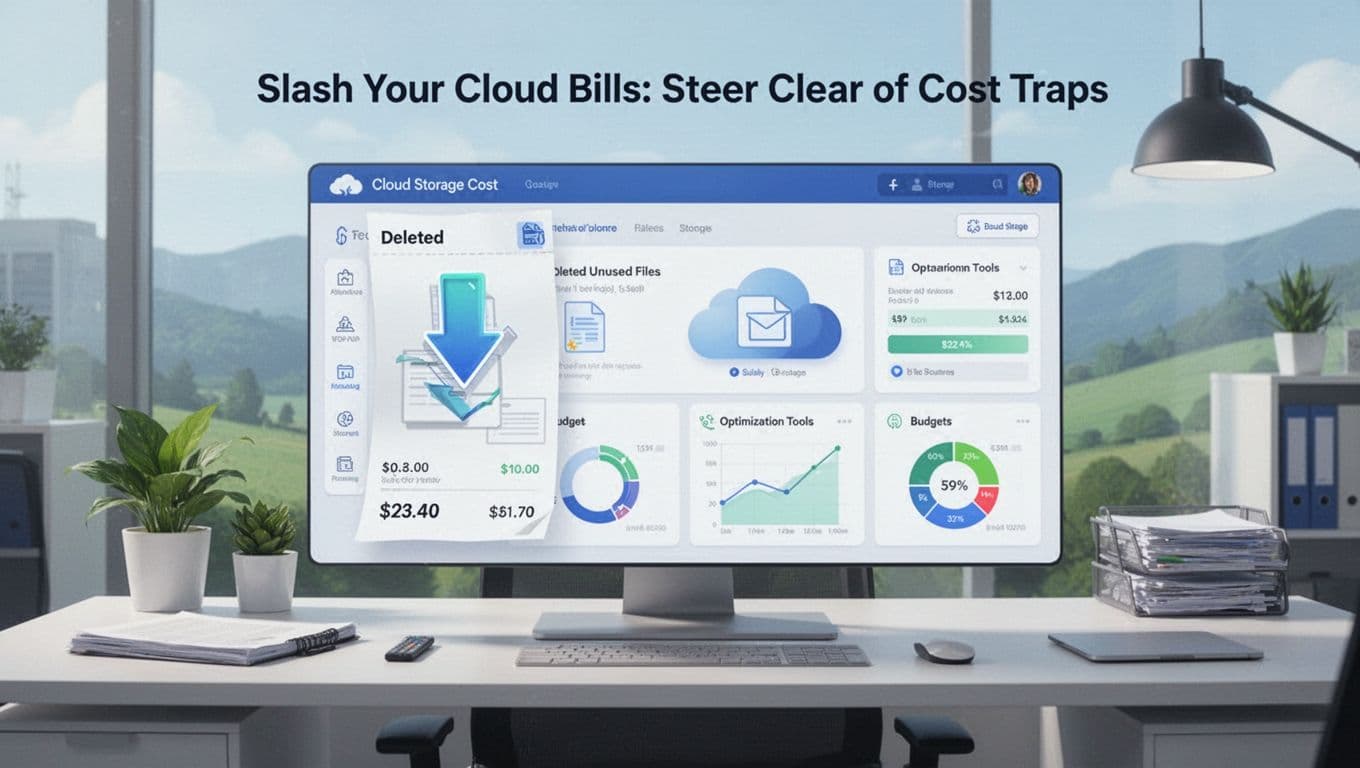
Here are steps that usually cut costs fast:
- Track usage weekly, not yearly. Use AWS Cost Explorer and billing dashboards.
- Set budgets upfront and add alert thresholds for big changes.
- Delete what you do not need. Archive older files, then remove duplicates.
- Review storage classes and lifecycle rules. Move rarely used data to lower-cost tiers.
- Watch egress and transfer charges, especially when apps cross clouds.
If you want ideas for storage tier and policy changes, this guide on optimization strategies is a helpful starting point: cloud storage cost optimization for S3, Azure Blob, and GCS.
The payoff is real. Teams often reduce storage waste quickly once they stop paying for test folders and forgotten backups.
Overlooking Usage Tracking and Cleanup
Cost control requires habits, not one-time fixes. Assign ownership to someone. Then schedule cleanup.
Also make sure teams know the rules. If a team can upload “forever” files, they will. In other words, cost problems come from unclear retention policies.
A simple approach works:
- Publish retention targets by file type.
- Tie access to business needs.
- Review “top storage users” and “oldest data” monthly.
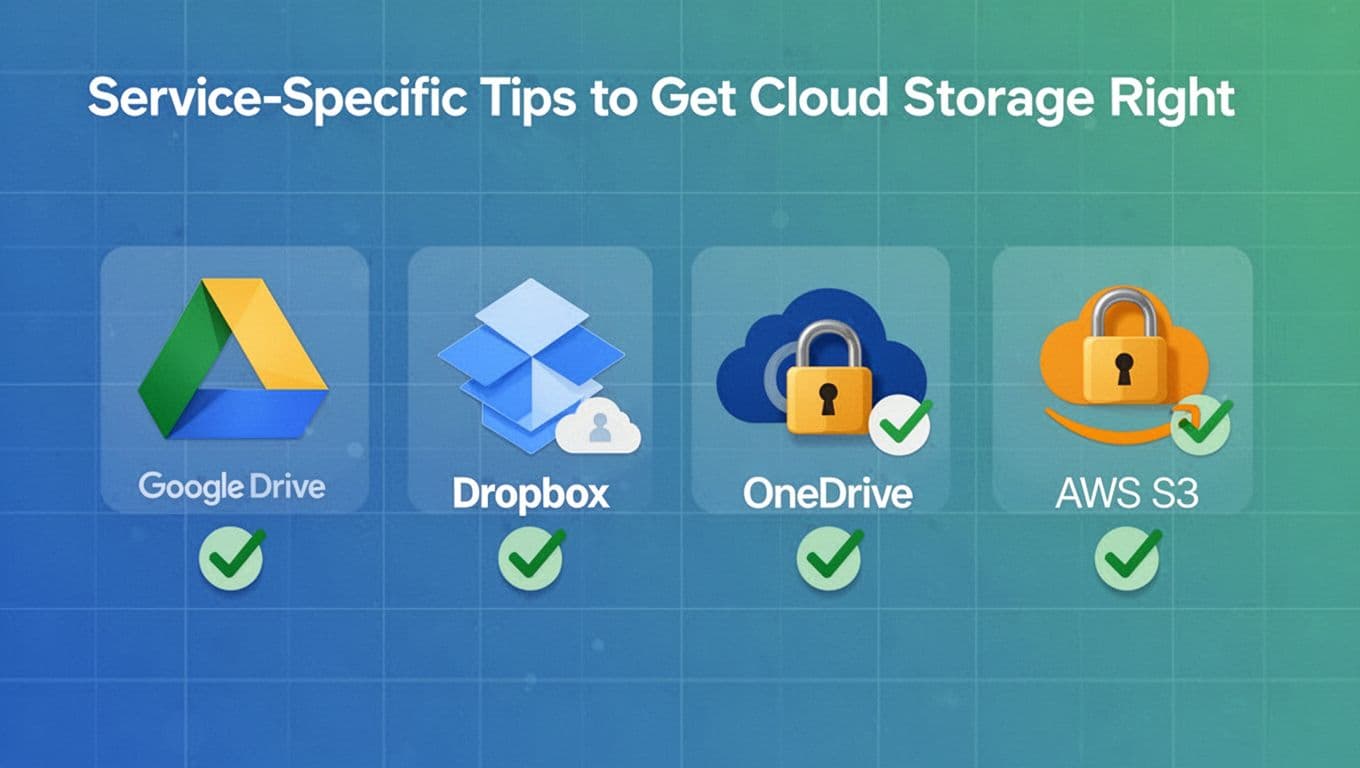
Service-Specific Tips to Get Cloud Storage Right
Different cloud platforms make different mistakes easy. So it helps to tune your setup per service instead of using one generic policy.
Here’s a quick reference for common “gotchas” and the habits that prevent them.
| Service | Mistake to avoid | Safer default action |
|---|---|---|
| Google Drive | Public or link-based shares that spread | Turn off broad sharing, review external access, and restrict link visibility |
| Dropbox | Old shared links that stay valid | Audit shared items, tighten link settings, and rely on version history |
| OneDrive | Over-shared folders across groups | Limit sharing, review external sharing settings, and keep permissions mapped to roles |
| AWS S3 | Public buckets or permissive bucket policies | Block public access, review policies and ACLs, and enforce IAM roles |
For AWS S3, many teams benefit from a clear checklist style guide. Toc Consulting outlines practical S3 security best practices, including reducing exposure from common missteps in AWS S3 security best practices 2026.
No matter the platform, training matters. People need to know which settings are safe and which ones create risk. Also, audit often. If you only check once a year, you’ll miss permission drift.
Conclusion
Cloud storage mistakes usually start small, then get expensive. If 75% of breaches link back to misconfigurations, and human errors drive most problems, then your best defense is regular audits plus clear access rules.
Secure shares, lock down buckets, and set strong monitoring. Back up and test migration steps so data does not disappear during “routine” changes. Finally, track costs so unused storage and stale versions do not quietly drain your budget.
Pick one tip and act today. For example, review your public shares and remove anything you do not need. Then teach your team the same habit, because safer cloud use grows from routine, not luck.
What’s the one cloud folder (or bucket) you’ll audit first?