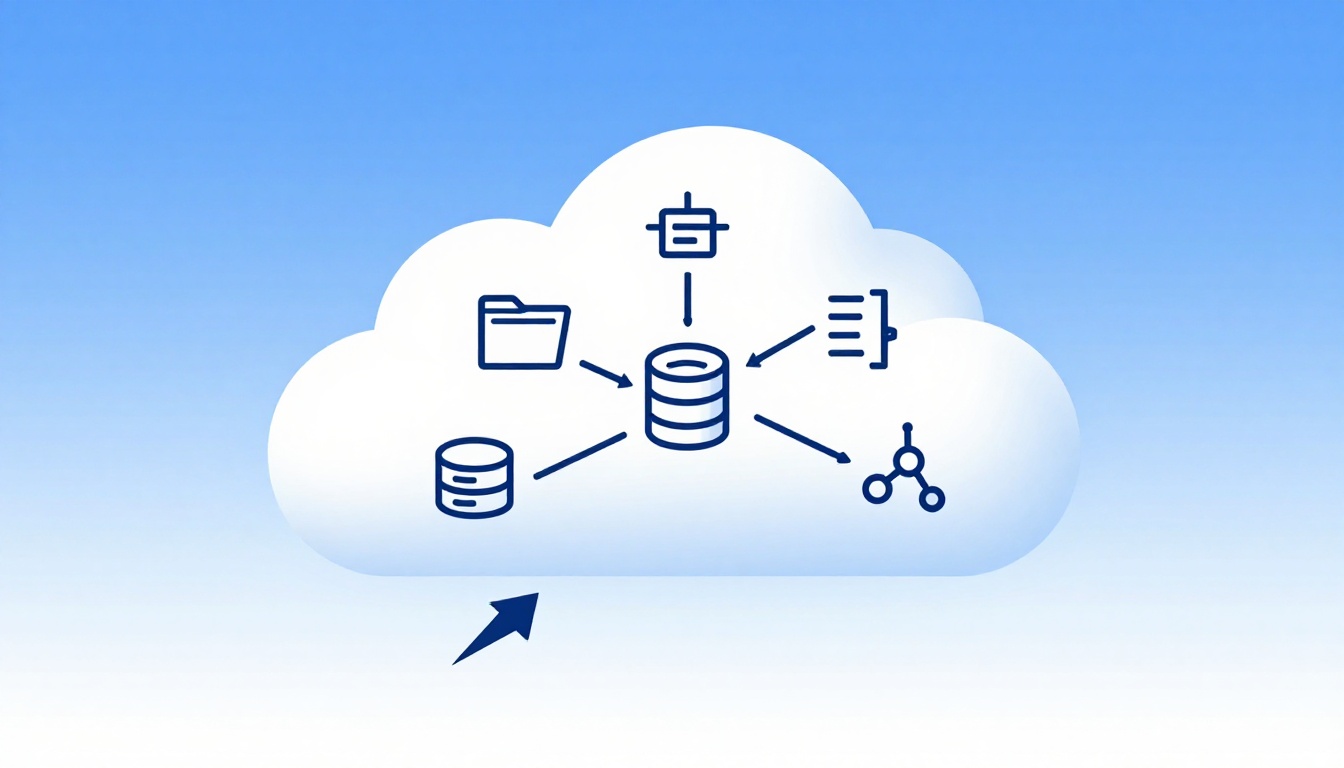
Running out of phone storage is frustrating, and building a website can feel even more expensive. Free cloud services are online tools from companies like Google, AWS, and Oracle that let you store files, run apps, host sites, or use AI for free up to certain limits. You can often access everything from any device, and many options include automatic backups, so your work doesn’t vanish overnight.
These free cloud services are perfect if you’re a student, testing a project, or just trying an idea without paying big bucks. For example, Google Drive gives you 15 GB free, Degoo offers 100 GB lifetime free, and Oracle’s Always Free plan includes databases you can run anytime. On the hosting side, GitHub Pages is great for free static sites, and Google Colab makes it easy to try AI notebooks without setup headaches.
Next, let’s look at the main types of free cloud services and what each one is best for.
Best Free Cloud Storage Services for Everyday Files and Photos
If you want the best free cloud storage 2026 options, start with a simple goal: keep your files and photos safe online, without buying a hard drive. Free plans can work like a spare room for your stuff, as long as you understand the limits and how each service fits your routine.
Google Drive: Quick Start for Google Users
Google Drive is the easiest win if you already use Gmail. Signing up takes seconds, and it connects to Google Docs and Sheets, so you can edit files right in your browser. Need to tighten a resume or fix a spreadsheet before school or work? You can do it from a laptop, tablet, or phone, then grab the same version later.
Sharing is also simple. You can send an easy link for viewing, or invite people by email for editing. That makes it great for family photos, school files, or shared projects where everyone needs the same documents.
Security matters here too. Google runs basic safeguards like encryption in transit and at rest, plus malware scanning. For everyday users, that’s usually “good enough” protection, especially compared to leaving files only on one device. Still, keep expectations realistic: Google Drive is not a private vault by default.
One big catch: the free limit is 15 GB, and it fills fast. Emails can eat space quickly because Drive storage can be shared with Gmail and other Google services. Videos and large photo libraries make it worse, so you may need to clean up at least once in a while.
For quick space-saving ideas, see Google Drive space hacks at CNET.
Google Drive is best when you want:
- Easy setup with Gmail
- Browser editing with Docs and Sheets
- Offline access through the Drive apps (depending on device and file type)
pCloud and Degoo: More Space for Heavy Users
If you store lots of photos or videos, you’ll feel the limits of small free tiers fast. That’s why pCloud and Degoo get attention from heavy users. They can give you more breathing room, and they focus more on storage than on office-style collaboration.
pCloud often shines with smooth apps on multiple devices and a built-in media player for many file types. It also supports sharing links, sometimes with password protection, which helps for sending albums or private files. For security, pCloud offers an optional client-side encryption option (often called Crypto mode), but that feature can cost extra. In other words, you can start free, then add stronger privacy if you’re the kind of user who cares a lot about access.
Degoo takes a different approach. It’s known for a huge free tier that’s built around photo and video backup. It leans into encryption and global backups, so your memories aren’t only sitting on your phone. The tradeoff is that some people find the upload speed slower and the app experience a bit less polished than pCloud.
Both services can reward you with referral bonuses, which can grow your free storage over time. That makes them feel like “adding seats to the storage room” while you invite friends.
Here’s a quick way to choose:
- Pick pCloud if you want app-friendly syncing and a media player, with optional extra encryption.
- Pick Degoo if you want big free photo storage and backup-style uploading, even if it’s less “smooth” day to day.
Free Cloud Computing and Hosting to Launch Your Ideas Fast
Think of free cloud options like training wheels for your next website, app, or code test. Instead of buying a server, you rent virtual machines (and databases) from major providers, then pay nothing as long as you stay inside the free limits.
The big trick is to treat these plans like trial labs. You can build quickly, but you still need to watch usage. When you do, you can move from “I have an idea” to “it runs in the cloud” without a monthly bill.
AWS and Google Cloud: Credits to Experiment Boldly
AWS starts with the most familiar path for beginners: you sign up, you get credits, and you can explore real services. According to AWS, new customers receive up to $200 in credits, and AWS also includes many services that stay free with usage limits. You do need a credit card to start the free tier, but the setup is meant to be no-charge while you learn. For the official details, use AWS Free Tier official page.
Here’s what that looks like in practice:
- You can spin up a small virtual server, run tests, and shut things down when you’re done.
- You can try managed databases and storage without buying hardware.
- You can learn AWS’s console workflow by clicking through one feature at a time.
However, credits can run out, so you should track what you use. If your project grows beyond the limits, costs can appear. In other words, AWS is great when you want “room to try,” but you must keep an eye on the clock and the meter.
Google Cloud feels even more “instant” for many users. New accounts often get starter credits right away, and Google also offers an Always Free layer for specific services. That combination works well if you want to test ideas fast, then keep a tiny setup going while you refine it.
Beginner-friendly consoles matter here. Both AWS and Google make it simple to find “compute” (virtual servers), “storage” (file buckets), and “databases” (managed data). If you want a quick visual to compare how people start these accounts, search for an AWS walkthrough like AWS Free Tier sign-up guide.
The safest habit: build, test, and delete. In free tiers, cleanup is part of the process.
Oracle Cloud and Northflank: Forever-Free Power
If credits disappearing feels stressful, Oracle Cloud and Northflank can feel like a breath of fresh air. Oracle’s promise is simple: Oracle always free options aim to last, so you can keep learning without a ticking credit balance.
On Oracle, the core win is its Always Free resources, including databases and storage. Oracle documents how its service limits work in its official help center, including the way limits apply by service. Start with Oracle Cloud service limits. Then look for Always Free database pages in the same docs when you want the exact product rules.
Northflank adds a different angle. Instead of giving you a giant set of infrastructure controls, it focuses on a sandbox experience for developers. That’s useful when you want isolated environments for experiments, untrusted code, or safe testing. You also reduce the “oops, I broke something” fear that comes with using production-like setups.
Northflank explains sandbox options and why they matter in its guides, including recommendations for what to use in different scenarios. A good starting point is Northflank cloud sandboxes guide.
Here’s the practical takeaway:
- Oracle always free works best when you want real cloud resources that stick around.
- Northflank works best when you want safe, contained sandboxes for dev testing.
If you plan to run a small prototype for months, Oracle usually fits better. If you plan to test code often, Northflank can keep your workflow calmer.
Free Cloud Services Explained (Storage, Hosting, Databases, and AI)
Free cloud services can feel like getting handed a toolkit. You get free cloud databases and free AI cloud tools inside big platforms, so you can build apps (or test ideas) without buying hardware first. The best part is speed, too. You often start in a web dashboard, then connect from code only when you need more control.
Think of it like setting up a small workshop in a shared building. The building already has power, plumbing, and security. Your job is just to rent the right room for your project, then follow the rules on time and storage.
Next, let’s focus on two moments that make free cloud platforms worth it: setting up databases fast, and trying AI without wrestling with setup.
Set Up Free Databases in Minutes
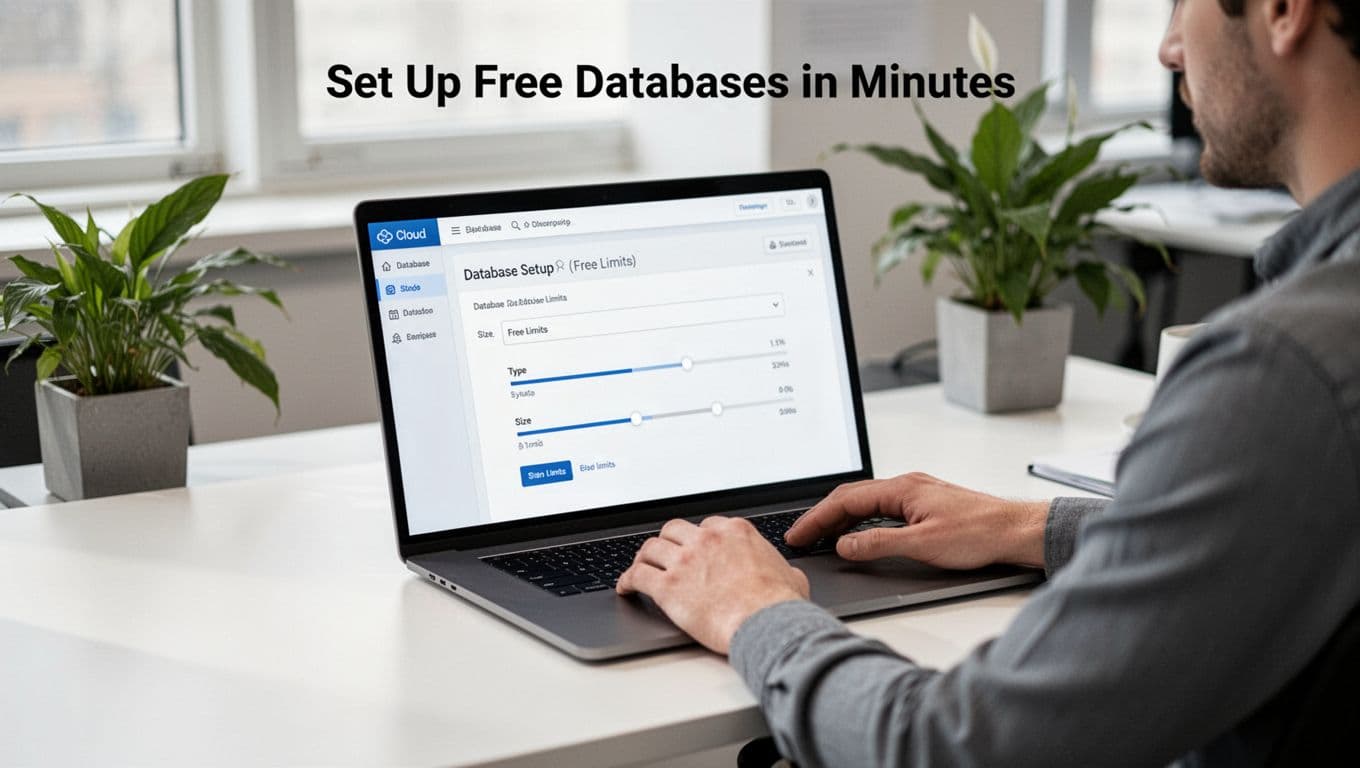
You usually set up a free cloud database the same way, regardless of provider. First, pick the database type. Then choose a free-tier size. After that, connect using a connection string from your app or a simple client.
For a concrete example, AWS RDS free tier gives you managed MySQL, PostgreSQL, MariaDB, and more, with limits meant for development and testing. In 2026, AWS RDS free tier includes 750 hours per month, 20 GB of SSD storage, and 20 GB of backup storage for qualifying instance types. It also runs as a Single-AZ setup, so you should not treat it like a high-availability production database.
Here’s the typical dashboard flow you’ll see:
- Sign in to AWS, then open the RDS console.
- Choose a database engine (like MySQL or PostgreSQL).
- Select the free-tier eligible instance type and keep the size within the free limits.
- Set the storage to the free-tier amount.
- Define easy access rules (security group, VPC, and admin user).
- Copy the endpoint details to connect from your code.
Oracle Cloud is another strong option when you want “set it and forget it” learning. Oracle’s Always Free Autonomous AI Databases let you create up to two free databases that do not consume cloud credits (as long as you stay within the rules). Each free database includes around 20 GB storage and one CPU core for processing. That fits small prototypes, test queries, and app demos where you want less worry about credits.
If you want a practical walkthrough, use Create and Connect to a MariaDB Database with Amazon RDS. If you want step-by-step RDS setup guidance, this beginner guide at How to Create an RDS Database on AWS can help you see the flow end-to-end.
One smart habit helps you stay in control: start small, build your app connection, then adjust only if you must. Also, shut down anything you do not need. Free plans rely on you staying within their limits.
Try AI Tools Without Coding Hassles
For free AI cloud tools, the win is usually the same: you can get results by uploading media or sending a file to an AI service, with limits that renew monthly. In other words, you test the workflow first, then you write code later if you want to automate it.
Google Cloud makes this easy through free AI quotas in areas like speech and video analysis. For example, Speech-to-Text offers free conversion time, and Video Intelligence includes a unit-based free tier for analyzing video. If you want a clear example of what “video analysis” looks like, you can start with Google’s free AI use case page at 10+ Free AI tools for 2026. From there, you can match the free service to your use case.
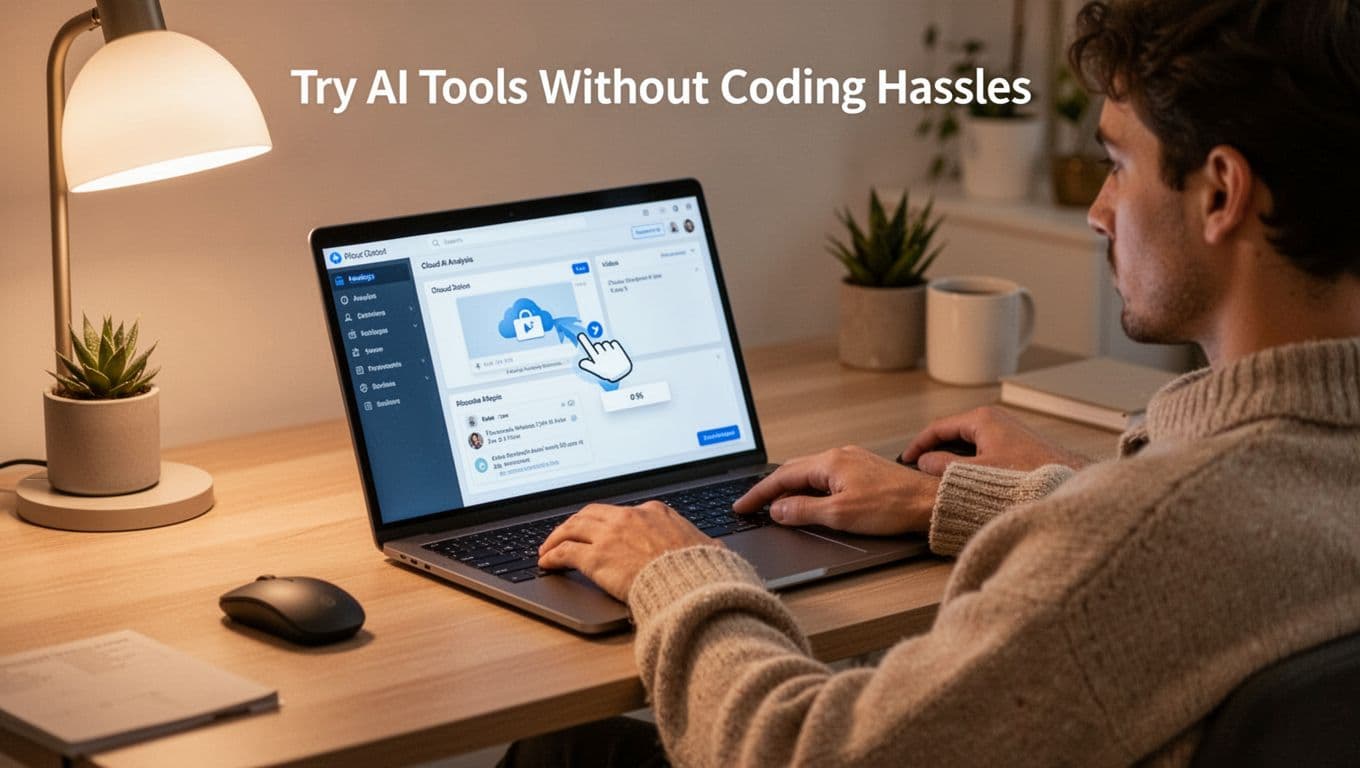
A simple way to use these tools, without coding, looks like this:
- Upload a short video to the AI tool interface.
- Choose the analysis type (labels, actions, or similar features).
- Run the job inside the platform dashboard.
- Download results or copy output into your project notes.
For video-specific labeling, Google’s Video Intelligence docs explain how analysis works with label detection at Analyze videos for labels. When you understand the output format, building an app becomes much easier.
Hostinger fits a different audience. Instead of raw AI APIs, it gives you AI features tied to website building. In practice, that means you can create a site with AI content tools while the hosting layer stays attached. As a result, you save time when you want a landing page, blog drafts, or SEO help for a test project.
To try it, Hostinger lists how to start their AI website builder, including the free trial path, at AI Website Builder | Launch your dream site in seconds – Hostinger. You can also follow their free trial steps from How to Try Hostinger Website Builder for Free.
The bigger connection to the rest of your project is this: databases store what your AI finds. Hosting displays it. Storage keeps source files. So, even if you start with AI “just to test,” you’re still building toward a full app workflow.
Step-by-Step: Sign Up and Use Free Cloud Services Today
If you want to learn how to use free cloud services, start with one simple rule: sign up like you would for a new app, then test upload and sharing right away. You can do this in minutes, and the biggest fear, surprise bills, usually comes from forgetting what “free tier” really means.
Quick Sign-Up for Storage and Basics
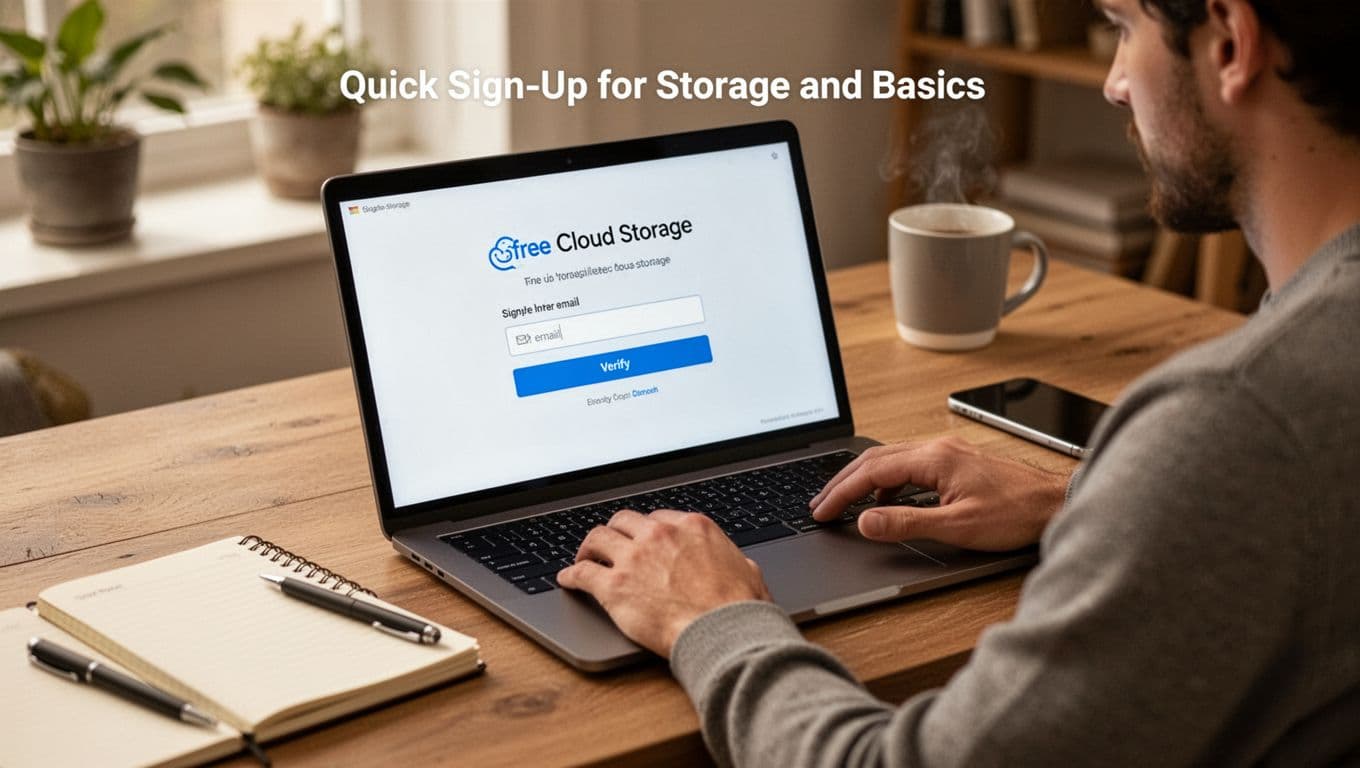
Start with storage services, because they teach the core flow: email, verify, upload. Think of it like setting up a mailbox, then putting your first letter inside.
Follow these beginner steps, and you’ll be ready to use free cloud storage today:
- Pick a service (Google Drive for easy syncing, pCloud for file storage, Degoo for photo and video backup).
- Sign up with email, using the provider’s free plan. For AWS and some compute services later, a card may be required, but for storage it’s usually not charged while you stay within limits.
- Verify your account (most services send a code by email, and some ask for phone verification).
- Upload your first files (start with one folder, or just 10 to 20 photos).
- Check the dashboard to confirm the upload worked, then watch for space limits.
Here’s how the flow typically looks across common options:
- Google Drive: create your Google account, verify by email, then click New to upload files (or use the Drive mobile app to auto-backup photos).
- pCloud: sign up with email, complete any verification step, then upload via the web app or mobile sync.
- Degoo: sign up with email (app-based setup), verify, then enable backup so photos and videos upload in the background.
One smart safety move: if a signup asks for a card and you don’t trust the process, open an incognito window and try again. Also, keep your first upload small, so you can learn the limits without stress.
If you want a quick checklist of common free storage options and what they offer, see Best free cloud storage roundup.
Launch Your First Computing Project Free
Now you’re moving from “store files” to “run stuff.” For beginners, the key is to pick a provider with clear free limits, then watch the dashboard.
Oracle is one of the most straightforward paths for free computing because it supports an Always Free tier. Start there, then add capacity only if you truly need it.
Oracle always-free setup (what to do first)
Use this order so you don’t get stuck mid-signup:
- Go to Oracle Cloud Free Tier and click Start for free: Oracle Cloud Free Tier.
- Enter your email and verify (Oracle commonly sends a phone/SMS verification step).
- Add your card. Even if the card is required, Always Free should not charge you if you stay within limits.
- Create your account and pick your region when prompted.
- In the console, start small by creating a tiny VM or a small service you can delete after testing.
Oracle also publishes a step guide for signup itself: Sign up for the free Oracle promotion.
Google credits activation (how to avoid bill anxiety)
Google Cloud can be free through credits plus an Always Free layer, but credits can expire. So, activate credits once, then keep a close eye on your usage.
Here’s the safe beginner approach:
- Sign up at Google Cloud’s free tier page.
- Complete billing setup, then check your project’s billing details.
- Use only small free-tier eligible services first.
- Stop and delete resources when you’re done.
If you want to test a tiny app without surprises, treat credits like starter fuel. You can experiment during the “free fuel” window, but you should still practice turning things off afterward.
Pro Tips and Limits: Stay Free and Avoid Surprise Bills
Free cloud services can be a great deal, but they come with free cloud services limitations. In practice, “free” usually means you get enough space and hours for testing, then pay if you go past the line.
To stay free, you need two habits: watch the meter and shut things down when you finish. Think of it like borrowing a friend’s car with a limited tank of gas. You can drive around town, but if you forget the trip, you still have to refuel.
Here’s what tends to cause surprise bills:
- Storage that grows quietly (more uploads, bigger backups)
- Compute hours that keep running (VMs, containers, scheduled jobs)
- Requests that spike (APIs, downloads, search queries)
- Credits that expire (AWS free credits, Google Cloud trial credits)
The good news is you can prevent most issues with simple monitoring plus alerts.
Watch Your Usage to Keep It Free
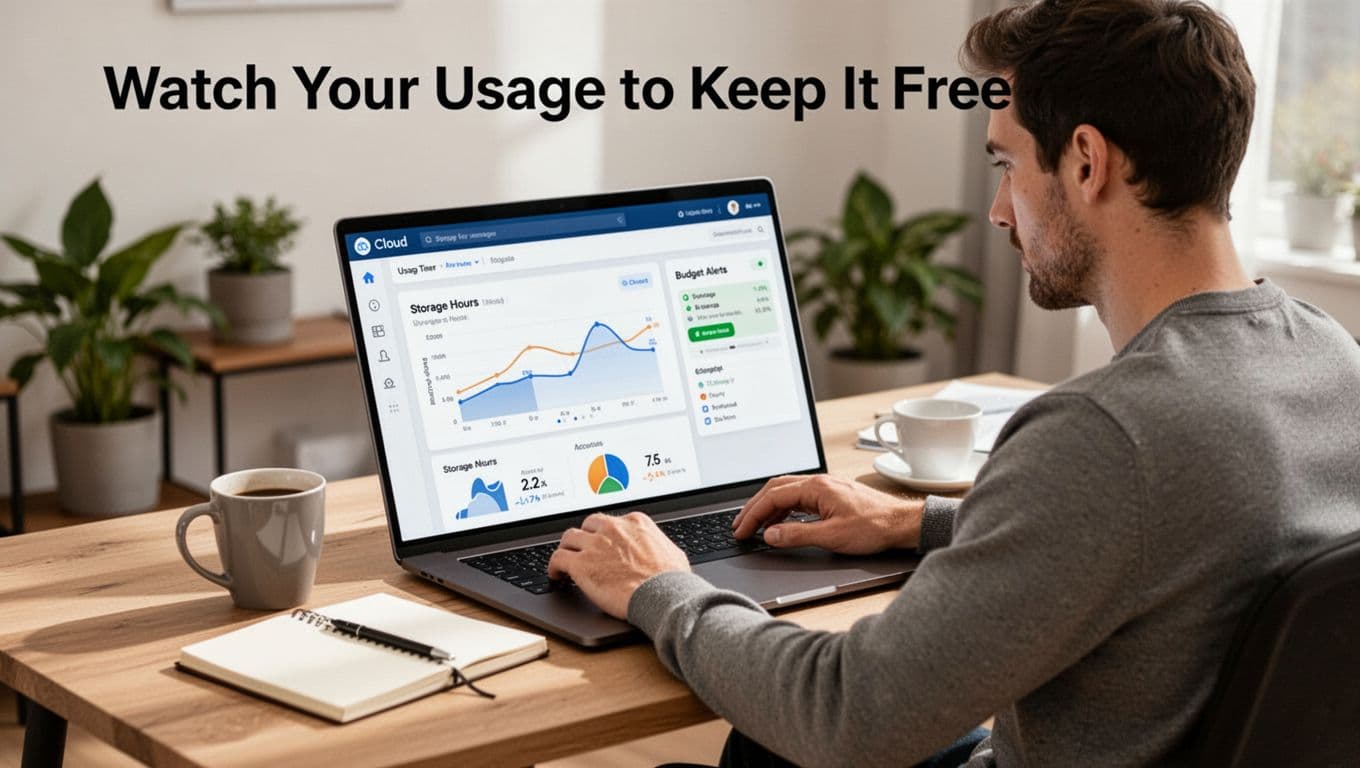
Start by treating dashboards like a weekly checkup. Most providers show usage in near real time, and that’s where you catch problems early, before your project grows past limits.
For example, in AWS Free Tier, limits can include EC2 hours (example cap: 750 hours per month) and storage caps (for example, S3 5 GB standard). Also remember that storage is often measured in ways that surprise people. Snapshots, backups, and “small” expansions add up.
To monitor your free tier properly, do these steps:
- Open your provider dashboard and find the billing or usage page.
- Track the top two items for your stack: storage and compute hours.
- Check weekly, even if nothing feels wrong.
- Turn off or delete resources you no longer use.
- Use budgets and alerts so you get a warning email.
Budgets are your best safety net. AWS lets you set up cost monitoring with Free Tier budgets and alerts in its onboarding guides. Use How to control your AWS costs with the Free Tier and Budgets | AWS to set thresholds that match your comfort level.
On Google Cloud, set budgets in the billing tools, then assign alert recipients. Google explains the basics in Create, edit, or delete budgets and budget alerts | Cloud Billing. This reduces the “I didn’t know” moments.
On Oracle Cloud, Always Free resources stay free, but limits still matter. Oracle lists Always Free options in Always Free Resources – Oracle Help Center. For alerts, Oracle also provides guidance on monitoring usage with Set an Alert for Your Resource Usage.
Know When Free Ends and Upgrade Smartly
Free plans end when you hit usage caps, run out of credits, or exceed resource limits. Sometimes you notice right away, but other times it’s delayed. That’s why it helps to learn the signs early.
Look for these common signals that “free” is about to stop:
- Your storage passes the safe range (many starters start around 5 GB to 100 GB depending on provider and plan)
- Your compute keeps running past what you need (hours climb while you sleep)
- Request volume spikes (API calls, logs, or download-heavy workloads)
- You see “usage nearing limit” warnings in dashboards
- Billing credits drop faster than expected (especially on free trials)
Also, understand that overage charges can start automatically. In AWS, overages apply once you exceed the free limits, and prices vary by service. If you keep running a VM past the free tier hours, you can start paying at standard rates. The exact numbers depend on the service and region, so check your provider’s pricing page when in doubt.
Upgrading smartly means you upgrade only what grew, not your whole setup. Here are safer upgrade paths that many people forget:
- Right-size compute: drop instance size or schedule downtime.
- Reduce storage churn: delete old backups, compress files, and set lifecycle rules.
- Add requests wisely: cache results, batch API calls, and reduce retry storms.
- Move non-critical workloads: keep experiments on free, put production traffic on paid.
Before you upgrade, confirm you actually need the extra capacity. Sometimes the fix is simple: delete a test environment, stop a job, or lower retention settings. Then check again in a week.
Finally, if you want a decision rule, use this: if your project is valuable enough to keep running, upgrade after you clean up. Free tiers reward discipline, and smart cleanup often turns a “bill incoming” situation into “still free.”
Conclusion
Free cloud services 2026 let you store files, host simple sites, run small databases, and try AI without paying upfront. They work well because you can start fast, then adjust only if your project needs more space or compute.
If you want one clear next step, pick Google Drive today, sign up, upload a small folder, and share a link to someone who can test it with you. After that, check your usage rules so you stay inside the free limits and avoid surprises.
Also remember this, free tiers can change over time. So when you renew or expand a project, review the limits on the official page first. What will you build once your files are safer and your setup cost is zero?