One minute everything looks fine, then an email pops up. The next minute, a “private” link is on the wrong screen. That’s what happened to Sam last year after a hacked shared link exposed client docs. It wasn’t the file itself that failed, it was the sharing settings.
Cloud services like Google Drive and Dropbox make sharing fast. They also make mistakes easy. A link with broad access, a forgotten “Editor” permission, or an unprotected account can turn convenience into a data leak.
This guide shows how to share files safely using cloud services without turning your life into a security project. You’ll learn how to pick safer storage options for your needs, follow clear step-by-step sharing instructions for major services, and spot common traps before they cost you.
Since it’s March 2026, keep one thing in mind: features and defaults change. Still, the core habits stay the same. Ready to share without worry?
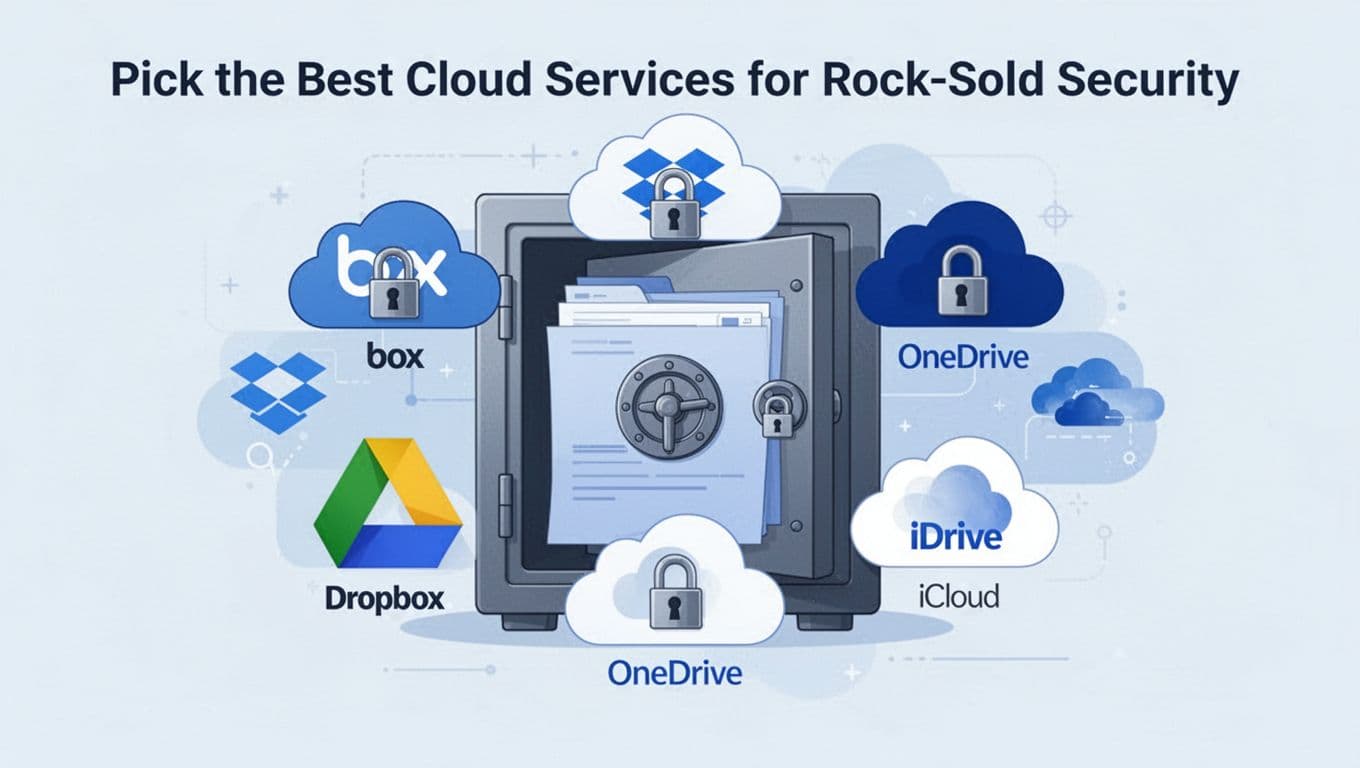
Pick the Best Cloud Services for Rock-Solid Security
Before you share anything, choose a cloud service that fits how you work. Some platforms focus on business controls. Others focus on quick links. A few offer stronger encryption options than the typical “provider can access your files” setup.
If you want a baseline, check third-party comparisons like TechRadar’s cloud storage rankings for 2026. These won’t replace your own testing, but they help you narrow down choices fast. Then pick the one that matches your devices and your risk level.
Here’s a simple way to decide:
- Personal use and simple sharing: go with a mainstream option that makes permissions easy to manage.
- Work and sensitive data: prefer services with tighter admin controls and better governance.
- Strong privacy needs: look for client-side or end-to-end style encryption, when it’s actually available for the type of sharing you do.
No service is perfect. The safer path comes from pairing the right tool with solid sharing habits.
To make this easier, here’s a quick “what to look for” comparison.
| Service | Best for | Sharing controls to check first | Security note to watch |
|---|---|---|---|
| Box | Work teams | Roles, invite-only access, admin controls | Strong enterprise governance |
| Dropbox | Mixed devices | Password links and link expiry (plan-dependent) | Encrypts in transit and at rest |
| OneDrive | Microsoft users | Group access blocks, admin settings | Account protection matters a lot |
| Google Drive | Fast team sharing | Viewer vs Editor, link limits (plan-dependent) | No native folder passwords |
| iCloud | Apple ecosystems | Password-protected sharing (where available) | Encryption varies by data type |
| IDrive | Privacy-minded users | Client-side encryption options | Often described as zero-knowledge style |
If you want more context on how these services compare for sharing, PCMag’s file-sharing service picks is a useful starting point.
Box: Enterprise Power for Sensitive Shares
Box tends to work well when you share files inside an organization and need governance. It’s popular for teams that handle private data and want clear control over who can do what.
When you’re choosing Box for secure sharing, look for:
- Invite-only sharing that limits access to specific people.
- Granular roles so users can view without re-sharing.
- Admin tools that help your team enforce rules.
If your files include contracts, health documents, or other sensitive material, Box’s business-focused permission model is often a strong match. It also fits better when multiple people manage accounts in the same company.
Dropbox and OneDrive: Everyday Security Champs
Dropbox and OneDrive often win on everyday practicality. They make it easy to share, then manage access when you need to.
Dropbox security habits to prioritize:
- Password links and expiration dates (availability can depend on your plan).
- Device and session controls, so an old login does less damage.
OneDrive’s strength is Microsoft ecosystem integration. If you use Microsoft 365, sharing controls can line up nicely with your org’s policies. For safer use, focus on:
- Specific people sharing instead of public-style links.
- Admin and group controls when you’re in a business environment.
A key point for both services: your account security sets the baseline. If someone steals your login, sharing settings won’t save you.
Google Drive, iCloud, and IDrive: User-Friendly Locks
Google Drive is popular for teams, and it keeps improving its sharing controls. In March 2026, recent updates emphasize finer control, like limiting access to specific people or specific files. It also offers options that can reduce what viewers can do, depending on plan features.
Still, know the limits:
- Google Drive encrypts files in transit and at rest, but end-to-end encryption is not the default for regular sharing. That means the provider can access your files when needed for service operations.
- Google Drive also doesn’t offer native “folder passwords,” so you should use permissions and expiring access instead.
iCloud works best if your life is already on Apple devices. Apple’s security approach uses strong encryption, and end-to-end style protections apply to some data types. For sharing, you’ll often rely on password-protected links and tight account controls.
IDrive is a good option if you care more about privacy than collaboration. It’s known for client-side encryption options. That can mean the provider holds less direct access to your content, depending on how you set up encryption for your use case.
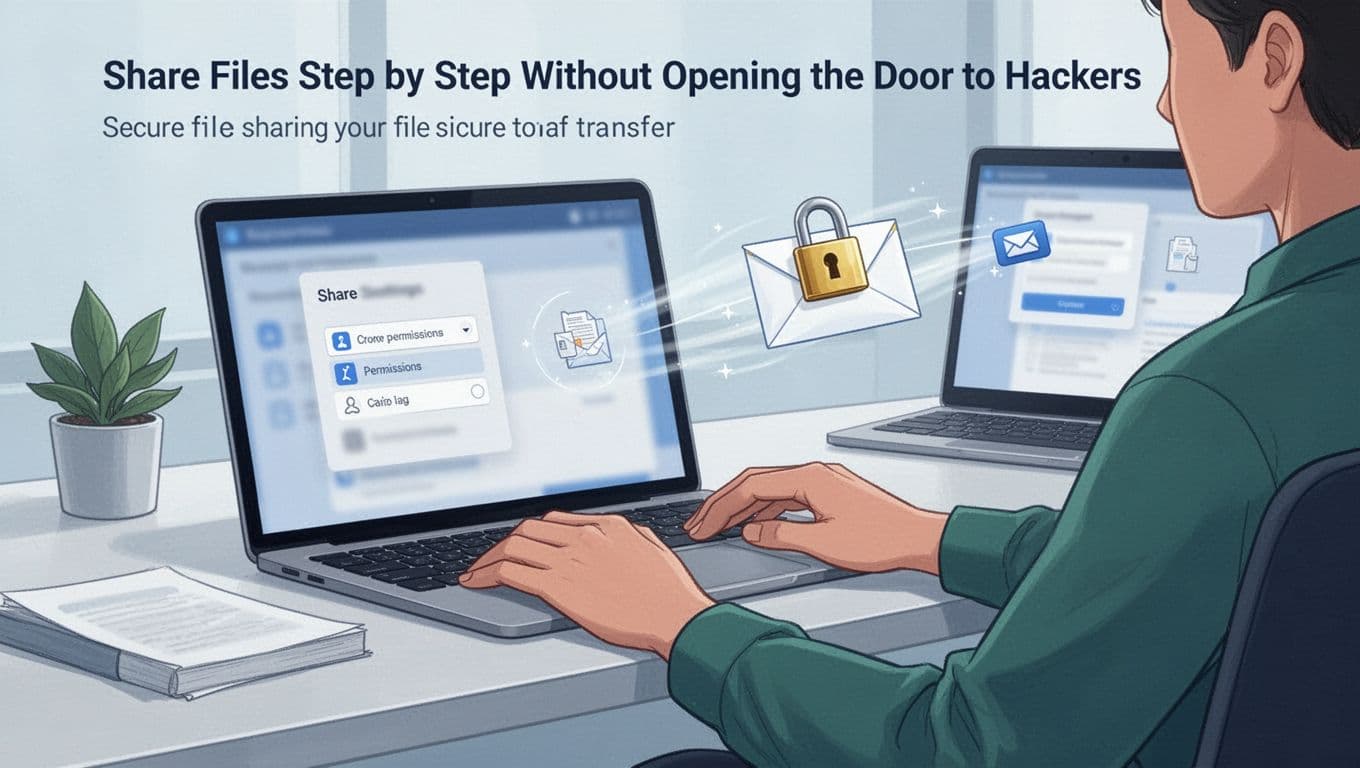
Share Files Step by Step Without Opening the Door to Hackers
Cloud sharing feels like tossing a package into a mailbox. But with links, the mailbox can be public if you pick the wrong slot.
Start with a few rules that work across most services:
- Share by specific email addresses, not public links (when possible).
- Set permissions to View unless you truly need Edit.
- Turn on 2FA for your cloud account (SMS is better than nothing, but an authenticator app is safer).
- Revoke access when the task ends, even if you trust the person.
- For sensitive files, encrypt before upload using an encryption tool you control.
Also, be careful with third-party apps. When you connect an app using OAuth, review what it can access. A “helpful” integration can request more permissions than you expect.
Google Drive Secure Sharing in Minutes
Google Drive is powerful, but it also rewards attention to details. The goal is simple: give access only to the right people, then limit what they can do.
Use this flow:
- Upload your file and let the provider scan it for threats (built-in scanning usually runs automatically).
- Click Share, then enter emails for the people who need it.
- Choose Viewer first. If you need changes, upgrade to Editor only for the minimum time.
- After sharing, manage access often. Remove access once the request is done.
One limitation matters: Google Drive doesn’t support native folder passwords. So don’t assume “password-protected folder” works like you might expect. If you need an extra layer, encrypt the file before upload, or use a separate secure method for credentials.
Dropbox: Lock It with Passwords and Dates
Dropbox makes it easy to share quickly. It’s also easy to accidentally share too widely, so keep it tight.
Follow these steps:
- Share via invites or a link created from the sharing button (prefer invites when you can).
- If you use a link, add a password and set an expiration date.
- Check the permission level. Make sure the link doesn’t allow edits unless you intend it.
- When the job ends, remove access and confirm the link no longer works.
Also watch for “forwarding.” If recipients can share with others, your link may spread. Use the safest permission that still meets the work need.
OneDrive, Box, and iCloud Quick Guides
You don’t need a perfect setup. You need a consistent one.
OneDrive
- Share with specific people instead of open links.
- Use the permission level that matches the task.
- Turn on link protections when options appear in your plan.
For a practical walkthrough, see secure sharing with OneDrive links from How-To Geek.
Box
- Use invited access for sensitive work.
- Assign the smallest role that still lets someone finish the task.
- Remove access when you’re done, not “sometime later.”
iCloud
- When you share, use password-protected link options when available.
- Rely on your Apple account security (strong password, 2FA, and trusted devices).
- Avoid sharing to groups you don’t manage.
If you want a focused “how-to” for OneDrive sharing, how to share a folder in OneDrive can help you map the clicks quickly.
Steer Clear of Traps and Add Extra Layers of Protection
Most leaks from shared files follow a pattern. The file wasn’t doomed, the access was. A public link gets indexed, an “Editor” permission spreads, or a user forgets to revoke access.
Common risks to watch:
- Public or guessable links that anyone can find.
- Forgotten revokes, so access stays after the task ends.
- Overbroad permissions, especially Editor where View is enough.
- No 2FA, so one stolen password becomes full access.
- Unencrypted sensitive files, so you trust the link more than the protection.
- Over-permissioned apps, especially after OAuth connections.
Here’s a good way to think about permissions: give people a key to a room, not a key to the whole building.
The safest link is the one that expires, and only opens for the people you named.
Pitfalls That Trip Up Most Users
Even smart people mess this up. These are the mistakes that happen most often:
- Using a “link anyone can access” option for a private file.
- Granting Editor because it feels convenient.
- Ignoring third-party apps connected to your storage account.
- Assuming “view-only” can’t be copied, then sharing files anyway.
- Leaving shared folders open when you only needed a one-time download.
If you want a broader security angle for cloud file setups, LOCK.PUB’s cloud backup security guide is a helpful checklist-style reference.
Pro Moves for Next-Level Safety
You don’t need fear. You need repeatable habits.
Try these pro moves:
- Run access reviews. Once a week, check who can access shared items.
- Use a password manager so your cloud accounts keep strong, unique passwords.
- Set device limits. Remove old devices and log out stale sessions.
- Prefer invite sharing when you can verify recipients.
- Encrypt before upload for highly sensitive files, especially if you share with many people.
For privacy-focused sharing, also pay attention to whether your service offers stronger restrictions for downloads and copy actions. In early 2026, Google Drive continued adding more control options for sharing behavior on paid plans. Exact features depend on the plan, so check your account settings.
Finally, audit any connected apps and remove ones you don’t use. A connected app can become a quiet backdoor over time.
Conclusion
Sharing files safely in the cloud comes down to one thing: tight access control. Pick a service that matches your needs, then share to specific people with the right permission level. After that, revoke access when the task ends and keep 2FA turned on.
If you want a quick win, check your current shares right now. Then change one risky link to an invite-only or expiring option.
Ready to share without worry? Try one tip today, and you’ll make your next shared link much safer.